The calendar format is especially useful because expenses are not only amounts; they are also time-based commitments. Rent may be due on one date, payroll on another, software subscriptions later in the month, and annual or quarterly payments on completely different schedules. Putting those obligations on one calendar makes timing easier to understand.
A well-designed template can serve a household, freelancer, department, project team, or small business. The basic structure remains similar: record the date, expense, category, expected amount, actual amount, payment status, and notes, then summarize the information so that upcoming financial pressure is easy to spot.
Spreadsheet-based calendars are particularly flexible because they can combine a calendar view with detailed transaction tables and formulas. Microsoft explains that budgeting spreadsheets can compare planned and actual costs, while Google Sheets supports templates and collaborative spreadsheet workflows. These capabilities make a simple calendar much more useful than a static list.
This guide explains how to choose, build, customize, analyze, print, and maintain an expense calendar. It also covers Excel, Google Sheets, PDF, Word, printable formats, business applications, reporting practices, common mistakes, and a practical workflow for turning a basic template into a dependable expense-control system.
What Is an Expense Management Calendar Template?
An expense management calendar template is a pre-structured document or spreadsheet that organizes financial obligations according to dates. Instead of keeping all transactions in one chronological list, the calendar places spending events into a daily or weekly timeline, making the timing of cash outflows easier to understand.
The template normally combines two ideas: expense recording and calendar planning. Expense recording captures what was spent, while calendar planning shows when money is expected to leave an account. When the two are connected, a reader can compare upcoming commitments with available cash and planned income.
For personal finances, the calendar might contain rent, utilities, insurance, groceries, loan payments, subscriptions, transportation, school costs, and discretionary purchases. For a business, it might include vendor invoices, payroll-related costs, software renewals, travel expenses, advertising, supplies, reimbursements, taxes, and project costs.
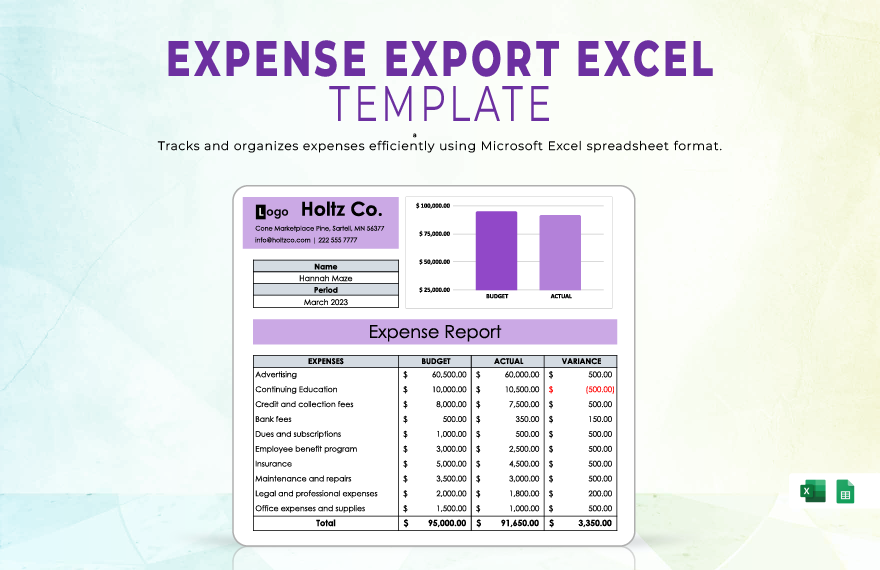
The most useful templates distinguish between planned and actual amounts. A planned amount represents the expected cost before payment. The actual amount is what ultimately appeared on the account or receipt. The difference between the two becomes a useful variance measure.
A calendar also provides a different perspective from a conventional monthly budget. A budget answers, “How much can I spend?” A calendar answers, “When will the money be needed?” Both questions matter because a person or business can have enough money for the month overall but still experience a cash shortage during a particular week.
Why an Expense Calendar Matters
One of the biggest advantages of calendar-based expense tracking is visibility. A long transaction list can hide clusters of spending because every entry looks equally important. A calendar makes clusters visible. Several large payments falling within the same few days immediately stand out.
Timing also improves cash-flow planning. Suppose a hypothetical small business expects $8,000 of cash receipts during a month but has $6,500 of expenses. The total appears comfortable. However, if $4,000 of expenses are due during the first week and most customer payments arrive near the end of the month, the timing creates a temporary liquidity problem.
A calendar can also reduce missed payments. Recurring obligations can be entered once and reviewed before the relevant date. A status field such as Planned, Scheduled, Paid, Reconciled, or Overdue can then distinguish future commitments from completed transactions.
Another advantage is accountability. When multiple people contribute expenses, the calendar can show who submitted the transaction, which department owns it, whether supporting documentation exists, and whether the amount has been approved. This is particularly valuable for business reimbursement workflows.
Finally, a calendar creates a bridge between planning and analysis. At the beginning of the month, it is a planning tool. During the month, it becomes a tracking tool. After the month closes, it becomes a source of historical information that can help improve the next budget cycle.
Key Components of a Strong Expense Calendar
The most effective calendar templates do not need dozens of fields. They need the right fields. A practical minimum includes date, expense description, category, expected amount, actual amount, payment status, and notes. Additional fields should be added only when they support a real decision or workflow.
The date field is fundamental because it establishes when the expense is expected or occurred. For recurring bills, a due date is usually more useful than simply recording the month. For variable transactions, the actual transaction date should be captured.
The expense description should be specific enough that another person can understand the transaction without opening a receipt. “Office cost” is vague; “printer toner replacement” is much easier to review later.
The category field provides structure for analysis. Common categories include housing, utilities, transportation, food, subscriptions, payroll, travel, marketing, professional services, office supplies, software, and miscellaneous costs. Business categories should reflect the organization’s reporting needs rather than copying an unrelated template.
The planned and actual amount fields make variance analysis possible. If an expected $300 expense becomes $375, the $75 difference can be investigated. A status field can then show whether the amount is still planned, paid, partially paid, disputed, or reconciled.
Calendar View vs. Expense List View
A calendar grid is useful when timing is the primary concern. Each day can contain one or more expense entries, making it easy to see busy periods. This is especially helpful for households managing bill dates and businesses monitoring recurring payments.
A list view is better when detailed analysis matters. A table can contain many rows with dates, vendors, categories, payment methods, amounts, tax information, project codes, and notes. It is easier to filter, sort, calculate, and summarize than a crowded calendar grid.
The strongest approach is often to use both. The list becomes the source of detailed transaction data, while the calendar becomes a visual summary. In a spreadsheet, formulas can pull or summarize list entries into the appropriate date cells.
For example, a business might maintain one transaction table containing every expense. A monthly calendar then shows the total planned outflow for each day. A dashboard can summarize total spending by category, department, project, or payment status.
This separation also improves maintenance. If a vendor changes a recurring payment amount, the underlying transaction record can be updated without redesigning the calendar. The calendar remains a presentation layer rather than becoming the only place where financial data is stored.
How to Build an Expense Management Calendar in Excel
Excel is a natural choice when calculations, formulas, filtering, printing, and offline access are important. Microsoft provides budgeting templates and guidance for tracking income and expenses, and Excel calendars can be customized for different layouts and reporting periods.
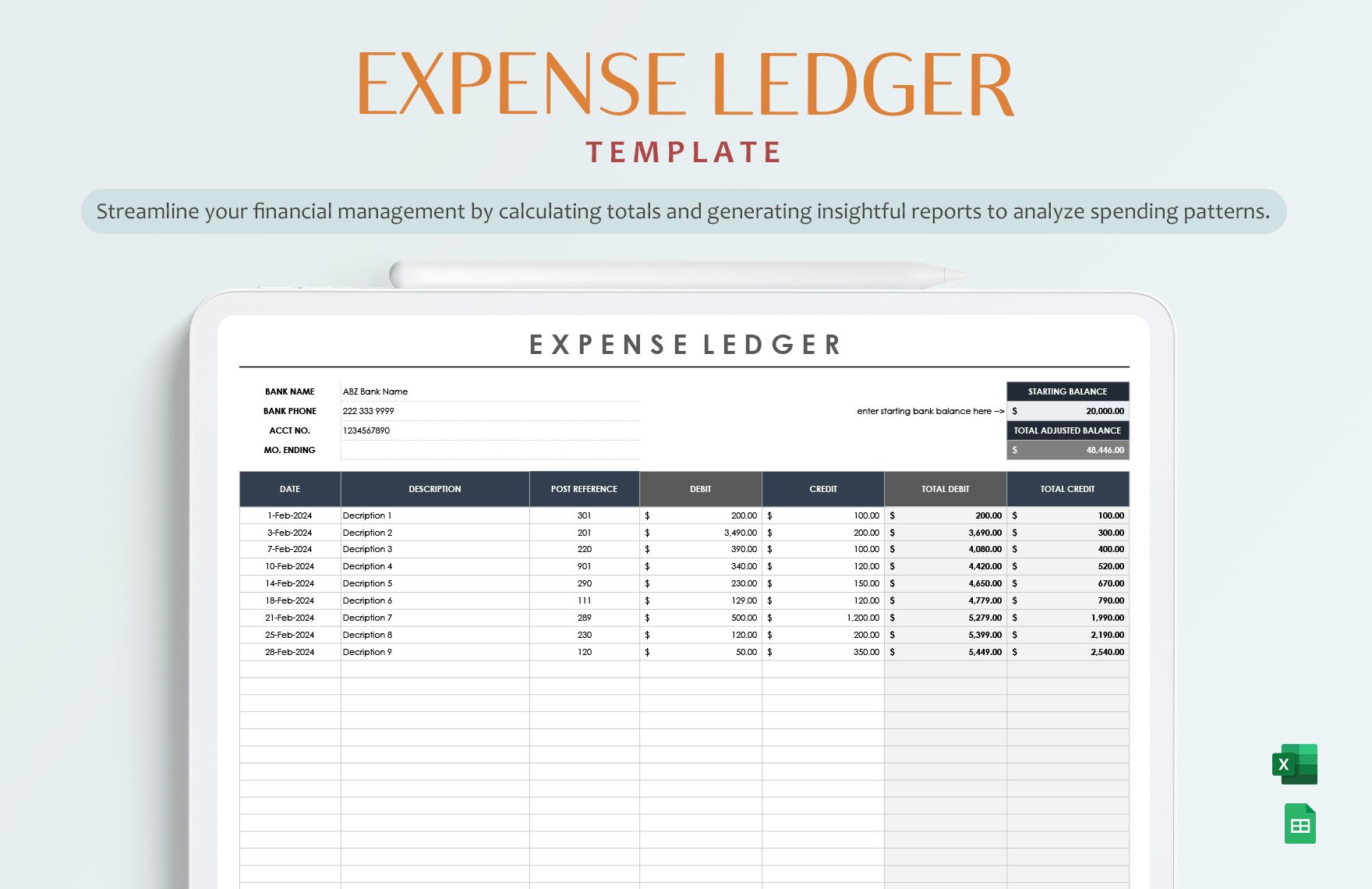
Start by creating a transaction table with columns such as Date, Description, Category, Planned Amount, Actual Amount, Payment Method, Status, and Notes. Convert the range into an Excel Table so that formulas and formatting can expand as new transactions are added.
Next, create a calendar sheet. Put the selected month and year near the top, then create a seven-column grid representing the days of the week. Each date cell can contain a daily expense total, a short description, or both depending on the available space.
Use formulas to calculate daily and monthly totals from the transaction table. For example, a SUMIFS-based approach can add actual expenses that fall between a selected start date and end date. Conditional formatting can then highlight unusually high spending days or expenses that exceed planned amounts.
Finally, add a summary section containing total planned expenses, total actual expenses, variance, unpaid expenses, and remaining budget. This turns the workbook from a calendar into a lightweight management system that supports both planning and review.
How to Build the Same System in Google Sheets
Google Sheets is useful when multiple people need access to the same expense calendar. Google supports templates in Sheets and other Workspace applications, and spreadsheets can be shared so that authorized collaborators can work from a common version rather than emailing multiple files.
Create the same basic transaction table used in Excel. Keep one row per expense and avoid combining several transactions into a single cell. A clean row structure makes sorting, filtering, formulas, charts, and later exports much easier.
Use data validation for fields such as category and payment status. A controlled list prevents one person from entering “Software,” another entering “software,” and another entering “Software Costs” when all three are intended to represent the same category.
The calendar sheet can be designed as a traditional Sunday-to-Saturday grid or as a date-ordered list. A traditional grid is more visual, while a list can accommodate longer descriptions. Some users may prefer a separate dashboard that displays the month, total spending, upcoming payments, and category breakdown.
For shared work, permissions and version control are important. Limit editing rights when appropriate, protect formula cells, and keep sensitive financial information out of documents that are broadly shared. Collaboration should make the process easier without weakening data controls.
How to Create a Monthly Expense Calendar Step by Step
Step 1: Define the tracking period. Decide whether the calendar covers one month, a quarter, a project period, or a full year. A monthly format is usually easiest to maintain because it matches common billing and budgeting cycles.
Step 2: Gather recurring expenses. List rent, subscriptions, insurance, utilities, loan payments, payroll commitments, software renewals, and other predictable costs. Enter their due dates before adding variable spending.
Step 3: Add variable expenses. Include groceries, travel, supplies, entertainment, repairs, advertising, meals, or other costs that change from period to period. For planned expenses, enter an estimated amount and label it as planned.
Step 4: Add income timing. An expense calendar becomes more useful when it also shows expected income dates. This allows you to compare inflows with outflows and identify weeks where available cash may be under pressure.
Step 5: Assign categories and statuses. Consistent categorization makes later reporting possible. Status values such as Planned, Due, Paid, Reimbursed, and Reconciled can show where each expense stands.
How to Categorize Expenses Properly
Expense categories should be designed around decisions. A category is useful when knowing its total can change what you do next. If two categories always receive the same treatment, combining them may simplify the system. If one category requires special oversight, it may deserve its own line.
Personal users might use broad groups such as housing, utilities, transportation, food, healthcare, debt, savings, subscriptions, education, and discretionary spending. The objective is not to create an accounting system with unnecessary complexity; it is to create enough visibility to understand spending behavior.
Businesses often need more detail. A small company might separate payroll, rent, software, advertising, travel, meals, office supplies, professional services, insurance, taxes, equipment, and contractor costs. Project-based businesses may add a project or client field.
Do not change category names casually after a year of tracking. Historical comparisons become difficult if January uses “Advertising,” February uses “Marketing,” and March uses “Promotion” for essentially the same cost. Establish a small controlled vocabulary and document unusual categories.
When categories become too numerous, the calendar becomes harder to read. A useful rule is to keep the calendar high-level and store more detailed classifications in the transaction table. The calendar should help decisions, not overwhelm the reader.
Tracking Planned, Actual, and Variance Amounts
Planned-versus-actual tracking is one of the most useful features of an expense management calendar template. Planned amounts establish expectations before money moves, while actual amounts document what happened. The difference shows where reality diverged from the plan.
Variance can be calculated as Actual minus Planned. A positive result may indicate overspending, although the interpretation depends on the type of expense and the reporting convention. Some organizations prefer Planned minus Actual, so the workbook should clearly label the calculation.
Consider a hypothetical monthly software budget of $500. If actual subscriptions total $560, the variance is $60 above plan. That difference may be caused by a price increase, an additional subscription, a currency conversion, or an intentional purchase.
The value of variance analysis is not the number itself. The value comes from the follow-up question: why did the difference occur? Repeated small variances may reveal a structural problem, while a single large variance may be an unusual event that does not require a permanent budget change.
Reviewing planned and actual amounts every month creates a feedback loop. Estimates can be adjusted using historical experience, recurring costs can be updated, and categories that consistently exceed expectations can receive additional attention.
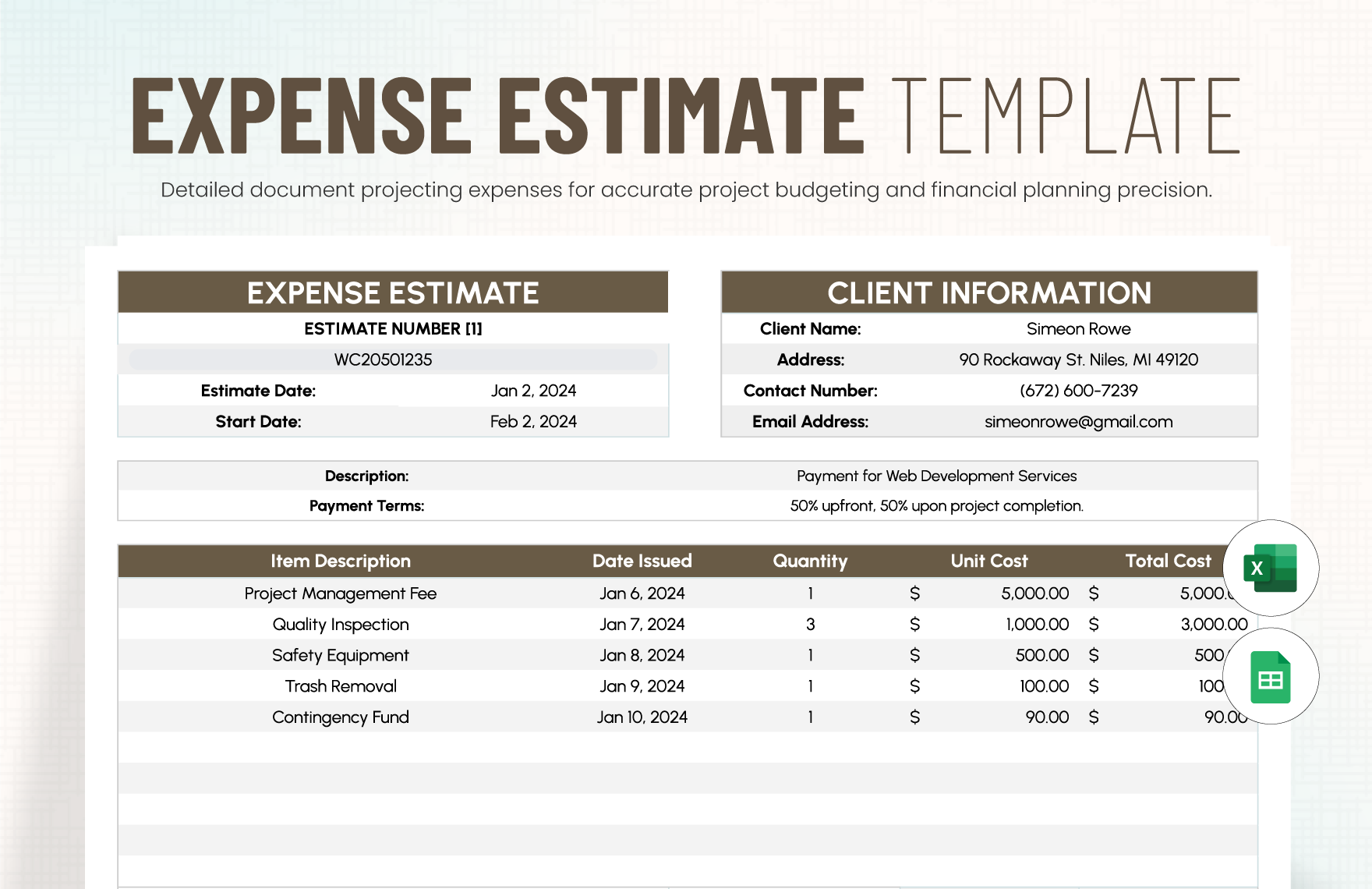
Using the Calendar for Recurring Expenses
Recurring expenses are ideal for calendar tracking because their timing can often be anticipated. Examples include rent, insurance, subscriptions, loan payments, software licenses, memberships, and service contracts. Entering these costs in advance provides an early view of unavoidable monthly commitments.
For each recurring item, record the normal due date, expected amount, category, payment method, and recurrence pattern. If the amount changes periodically, record the expected value and note that the amount is variable.
Recurring expenses should not be treated as automatically correct. A subscription may renew at a different price, a service may be canceled, or an annual contract may move to a new date. Review recurring items periodically instead of copying them indefinitely.
A useful monthly routine is to review all upcoming recurring expenses before the month starts. Confirm that the amounts remain accurate, remove canceled services, add new commitments, and identify unusually large payments.
For organizations, recurring expense reviews can also support contract management. A calendar reminder can prompt the responsible person to review a renewal before payment rather than discovering the renewal after the transaction has already occurred.
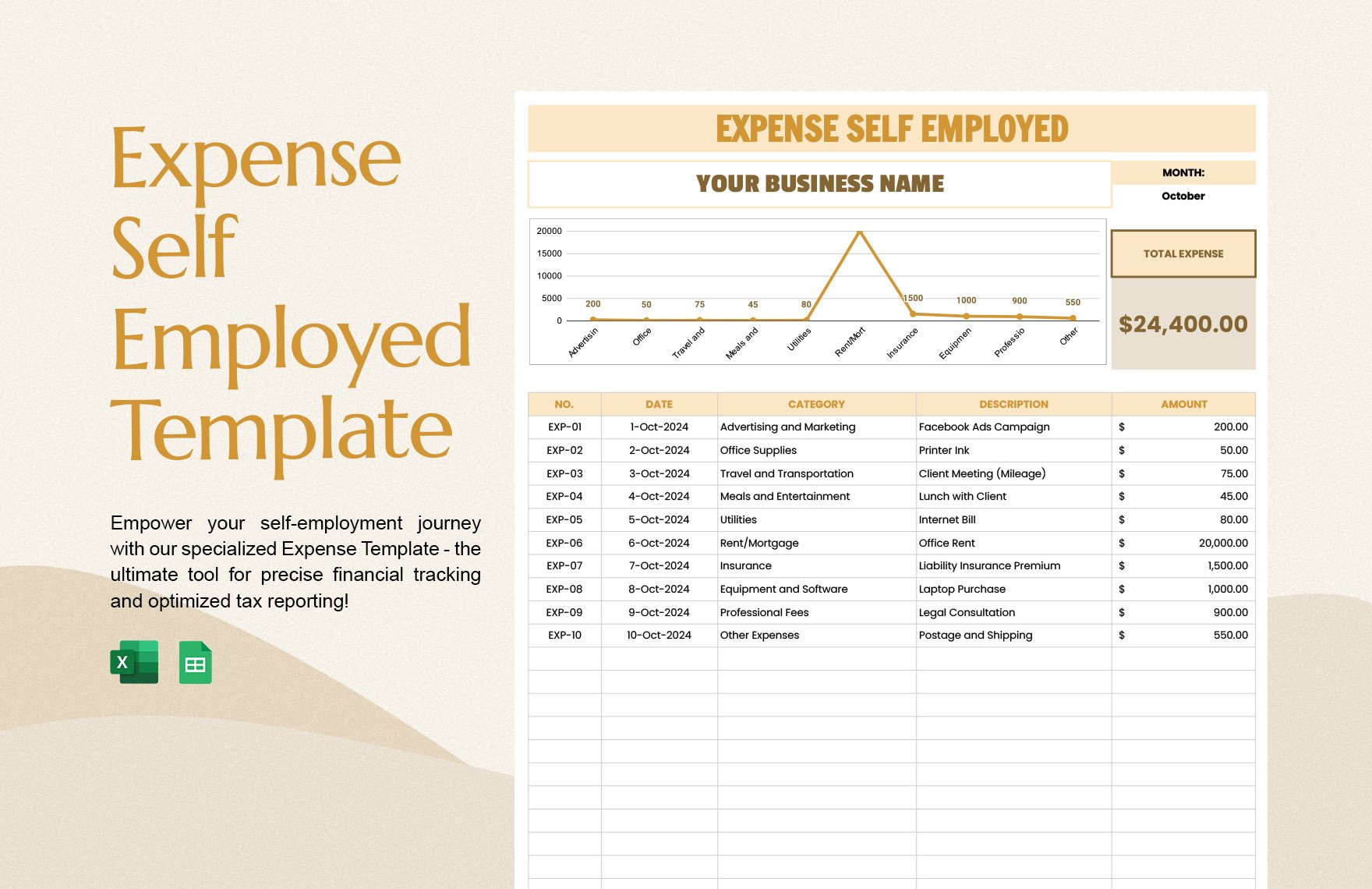
Managing Variable and Irregular Expenses
Variable expenses require a different approach because the exact amount is not always known. Instead of pretending that every future cost is precise, use reasonable planning estimates and clearly distinguish estimates from confirmed amounts.
For example, a business might budget $800 for travel in a month but have several possible trips. The calendar can reserve the expected travel dates and estimated amounts, while the transaction table records the actual costs as they occur.
Irregular expenses deserve special attention because they may not appear every month. Annual insurance, equipment replacement, professional fees, tax payments, conferences, and maintenance can create large one-time cash requirements.
A useful technique is to maintain an annual obligations list alongside the monthly calendar. When an annual expense is approaching, the monthly view can display the upcoming commitment so it is not treated as an unexpected event.
For personal budgeting, the same principle applies to birthdays, holidays, school fees, vehicle maintenance, travel, and annual memberships. Planning irregular costs across the year can reduce the need for last-minute borrowing or disruptive spending cuts.
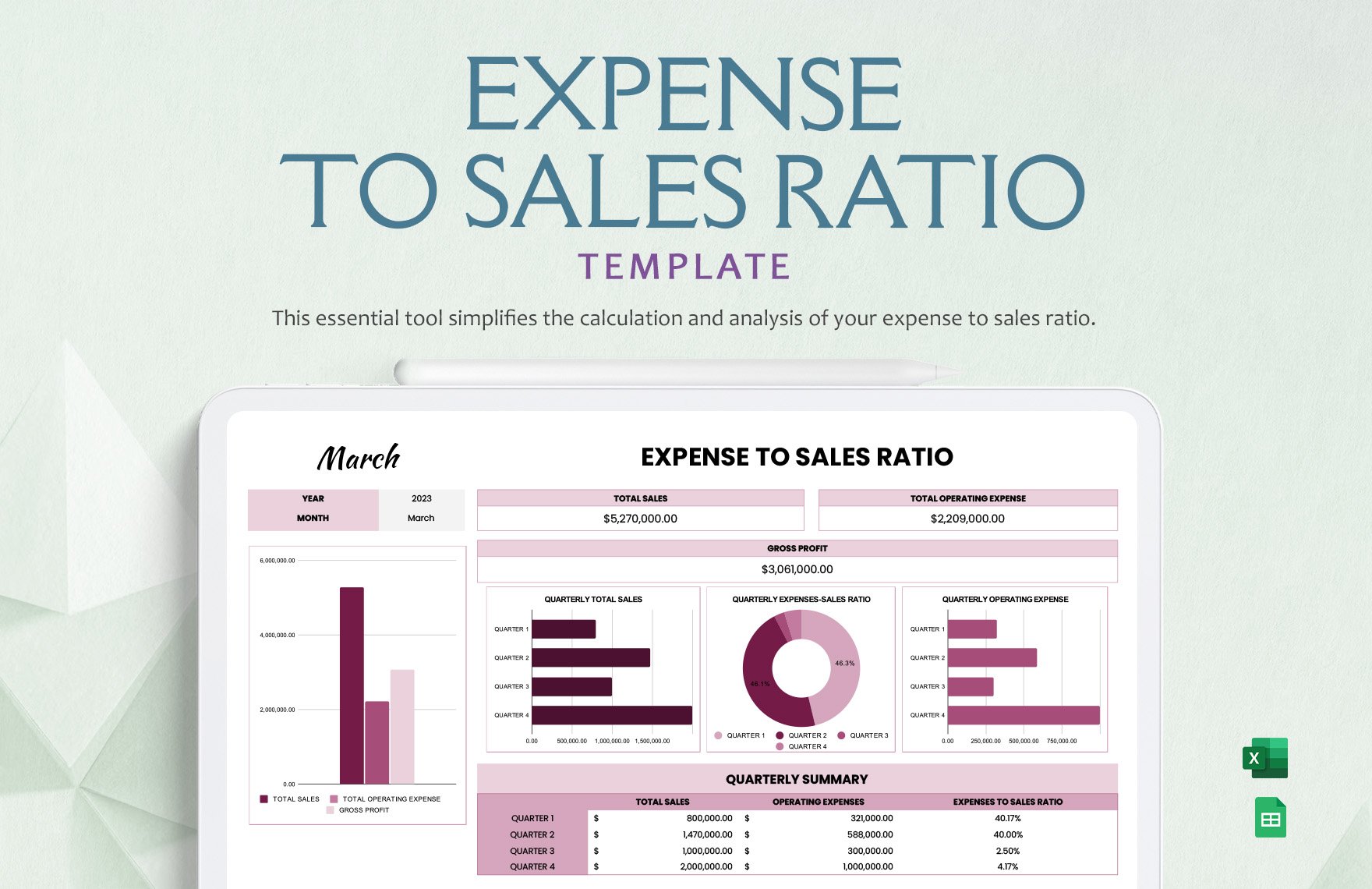
Using an Expense Calendar for Business
Businesses can use an expense calendar to coordinate finance, operations, procurement, and department managers. The calendar provides a shared view of when payments are expected, while detailed records remain available for accounting and reconciliation.
A small business might track vendor invoices, rent, payroll-related commitments, marketing expenses, software subscriptions, travel, insurance, equipment purchases, and professional services. Each entry can include a department or project code to support later reporting.
Project teams can use a calendar to monitor scheduled spending against milestones. A project may have design costs early in the month, contractor payments later, and software or equipment purchases around a delivery date. Seeing those expenses together helps project managers identify periods of high cash demand.
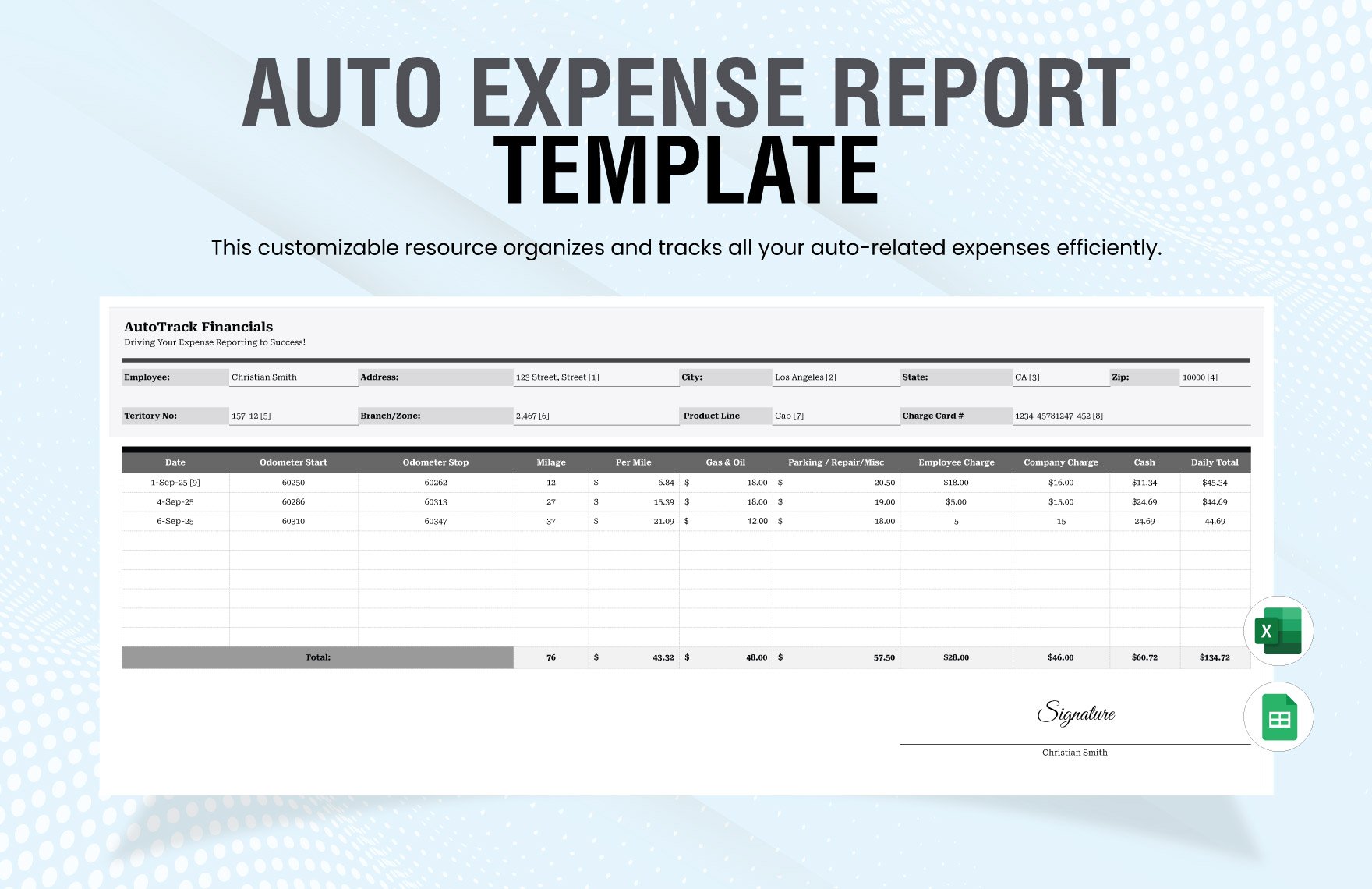
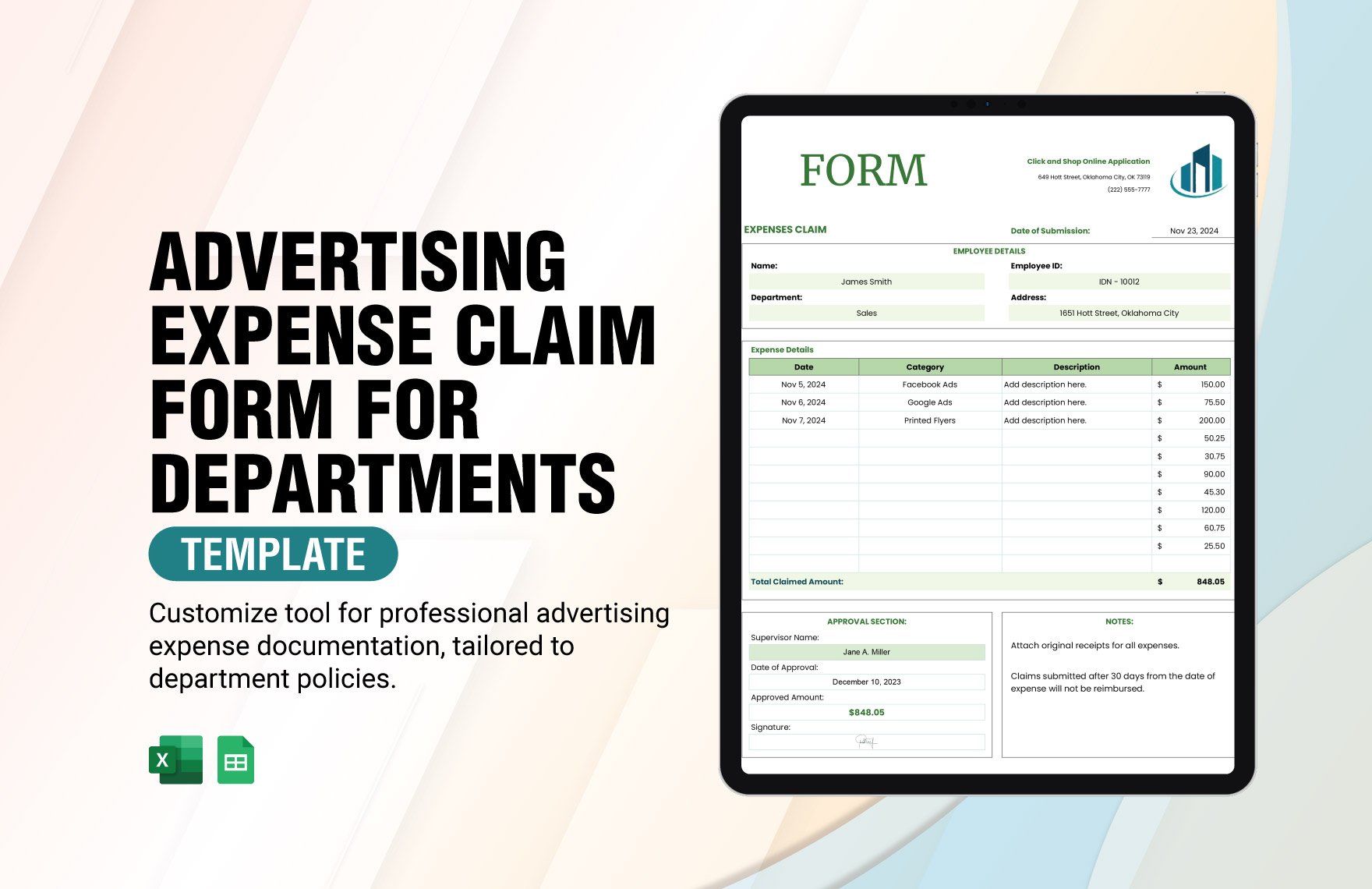
Expense calendars can also support reimbursement workflows. Employees record the date, purpose, category, amount, and payment method. A manager reviews the entry, finance verifies supporting documentation, and the status changes as the expense moves through approval and reimbursement.
The calendar should not replace formal accounting records where those records are required. Instead, it works as an operational planning and monitoring layer. The accounting system remains the authoritative source for financial reporting, while the calendar helps people manage upcoming activity.
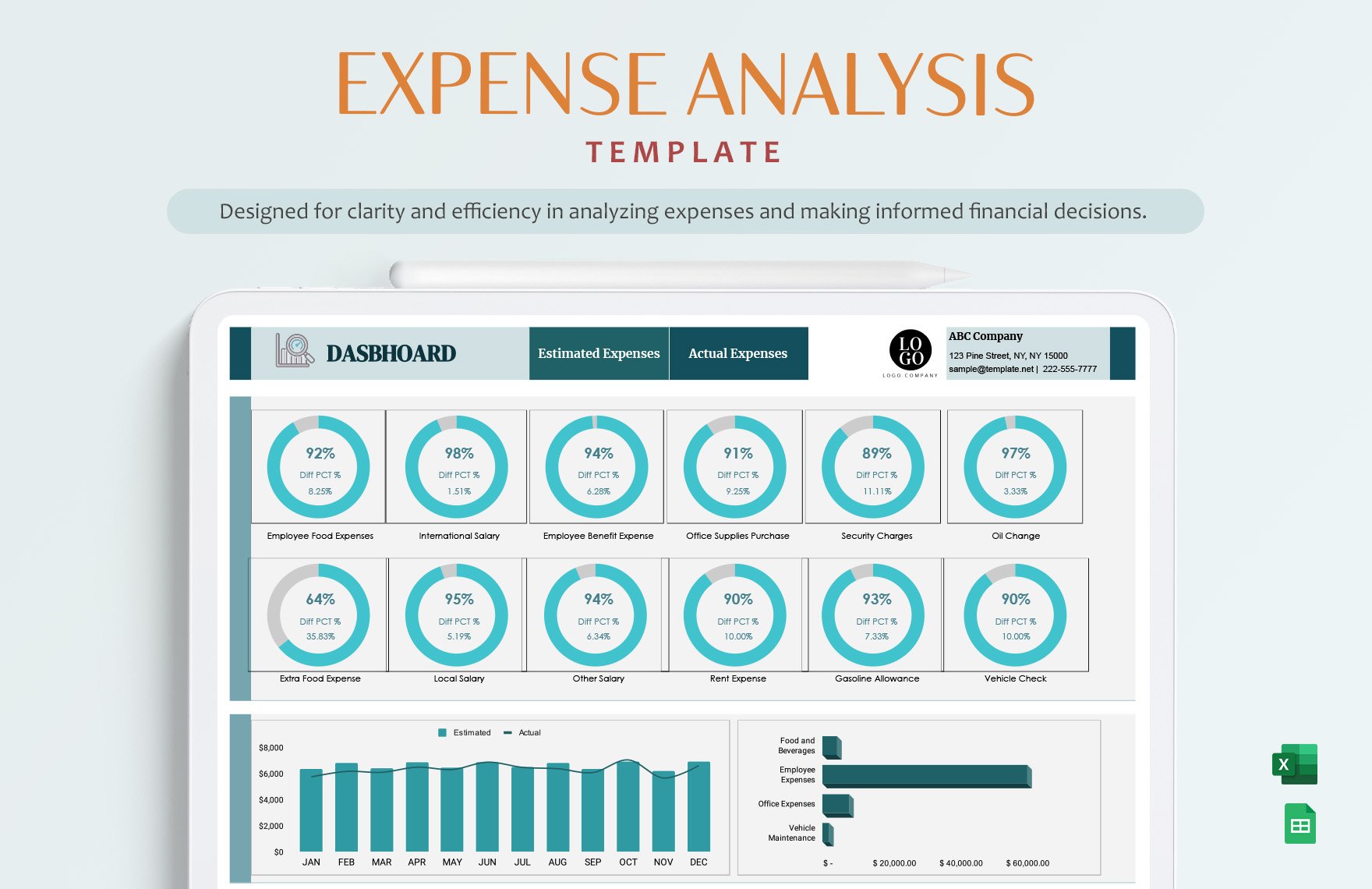
Expense Calendar for Reimbursements
Reimbursement tracking benefits from a consistent structure because employee expenses often involve several stages. An employee may incur a cost, submit a claim, attach documentation, receive approval, and eventually receive payment.
A reimbursement calendar can include the expense date, submission date, employee, department, category, amount, approval status, and reimbursement date. This makes overdue claims easier to identify than a simple list of transactions.
Receipts and supporting documents should be connected to the relevant record through whatever document-management process the organization uses. The calendar itself should not become a storage location for sensitive information unless appropriate controls are in place.
Businesses should also distinguish company-paid expenses from employee-paid expenses. The amount may be identical, but the cash-flow and reimbursement implications are different. A payment made with a company card may require reconciliation, while an employee-paid expense may create a reimbursement obligation.
Regular review can reveal process problems. If many claims remain pending for long periods, the issue may not be employee spending but an unclear approval workflow. The calendar can make that bottleneck visible.
Creating a Monthly Expense List Alongside the Calendar
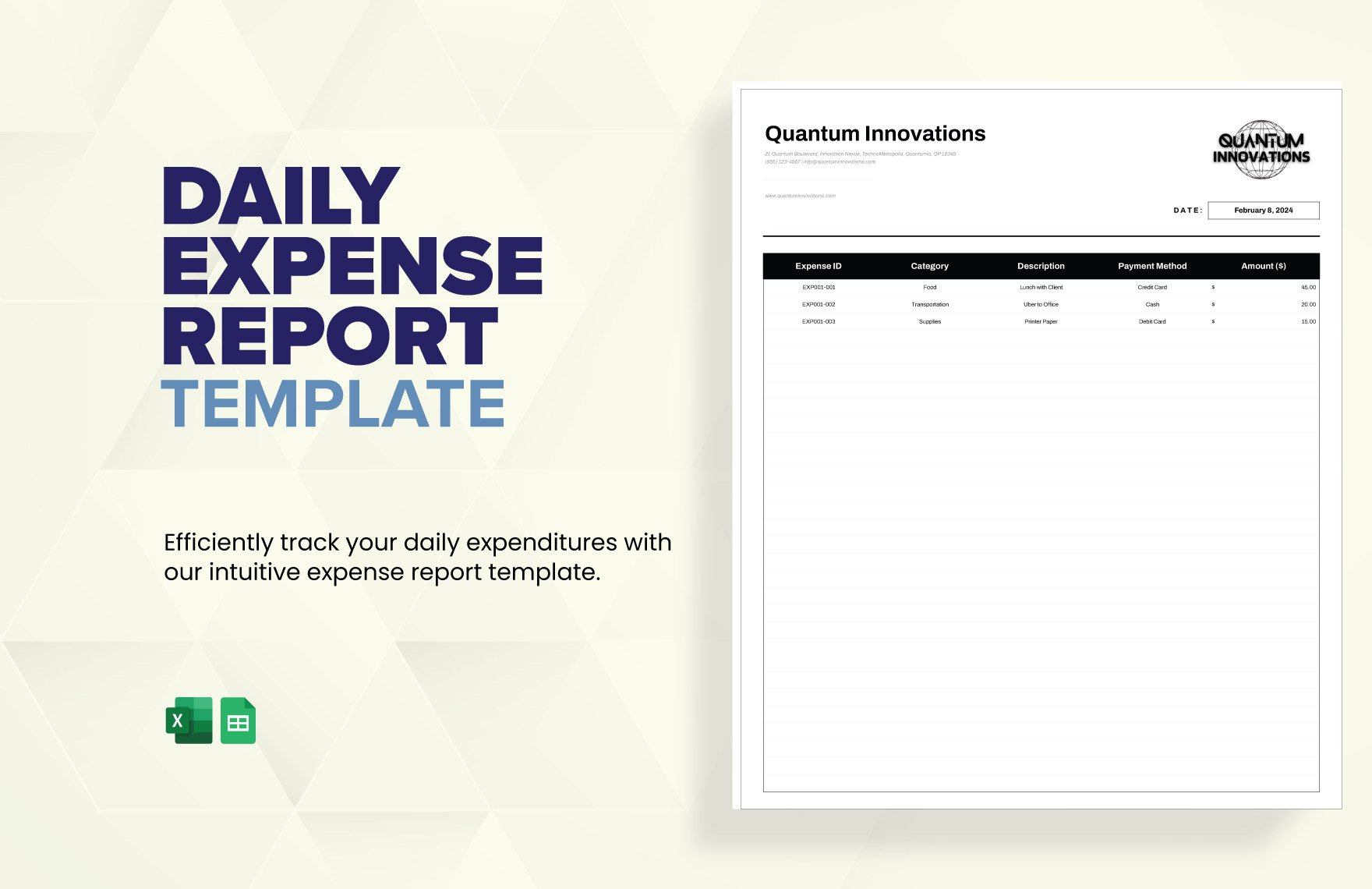
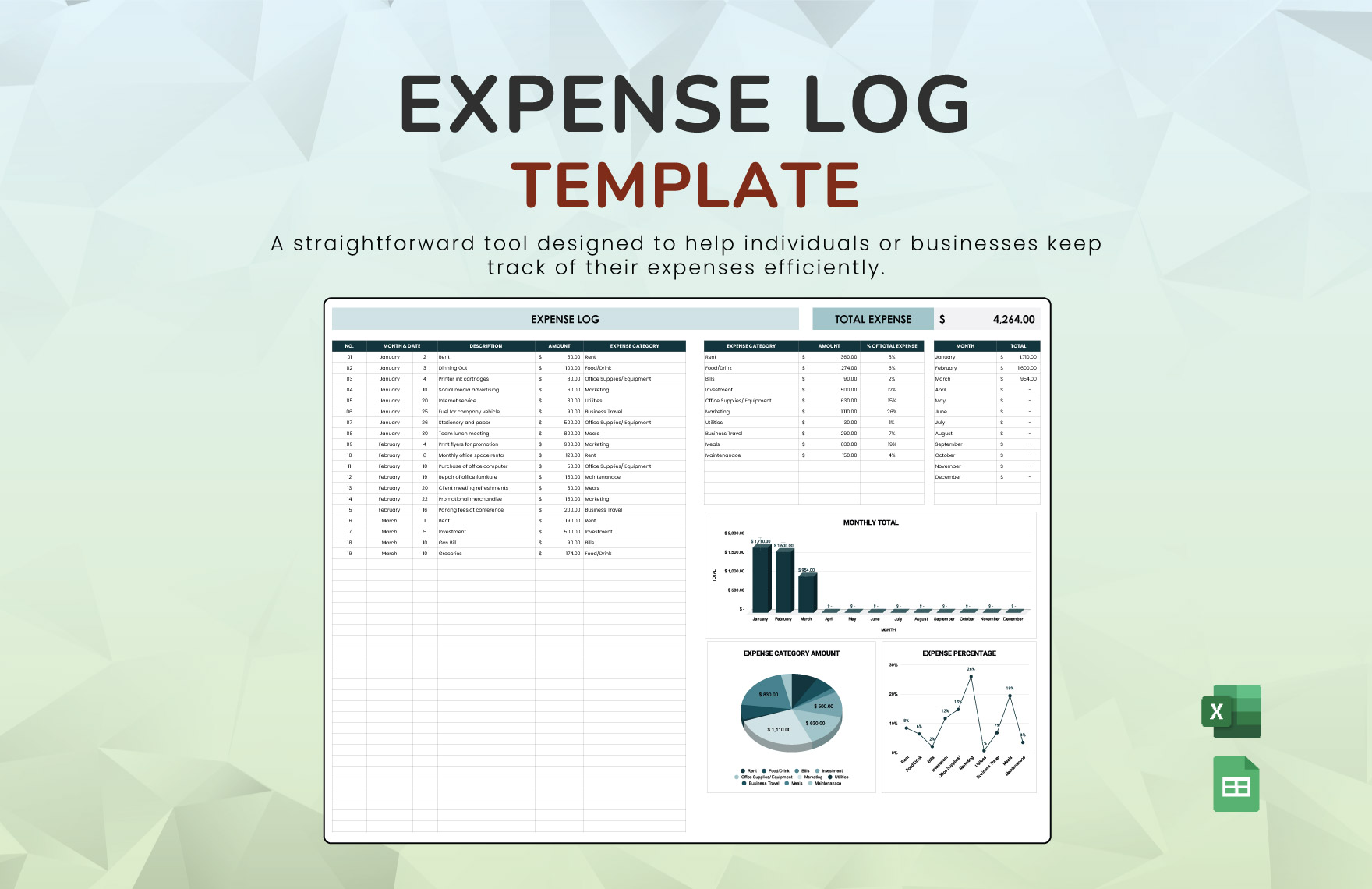
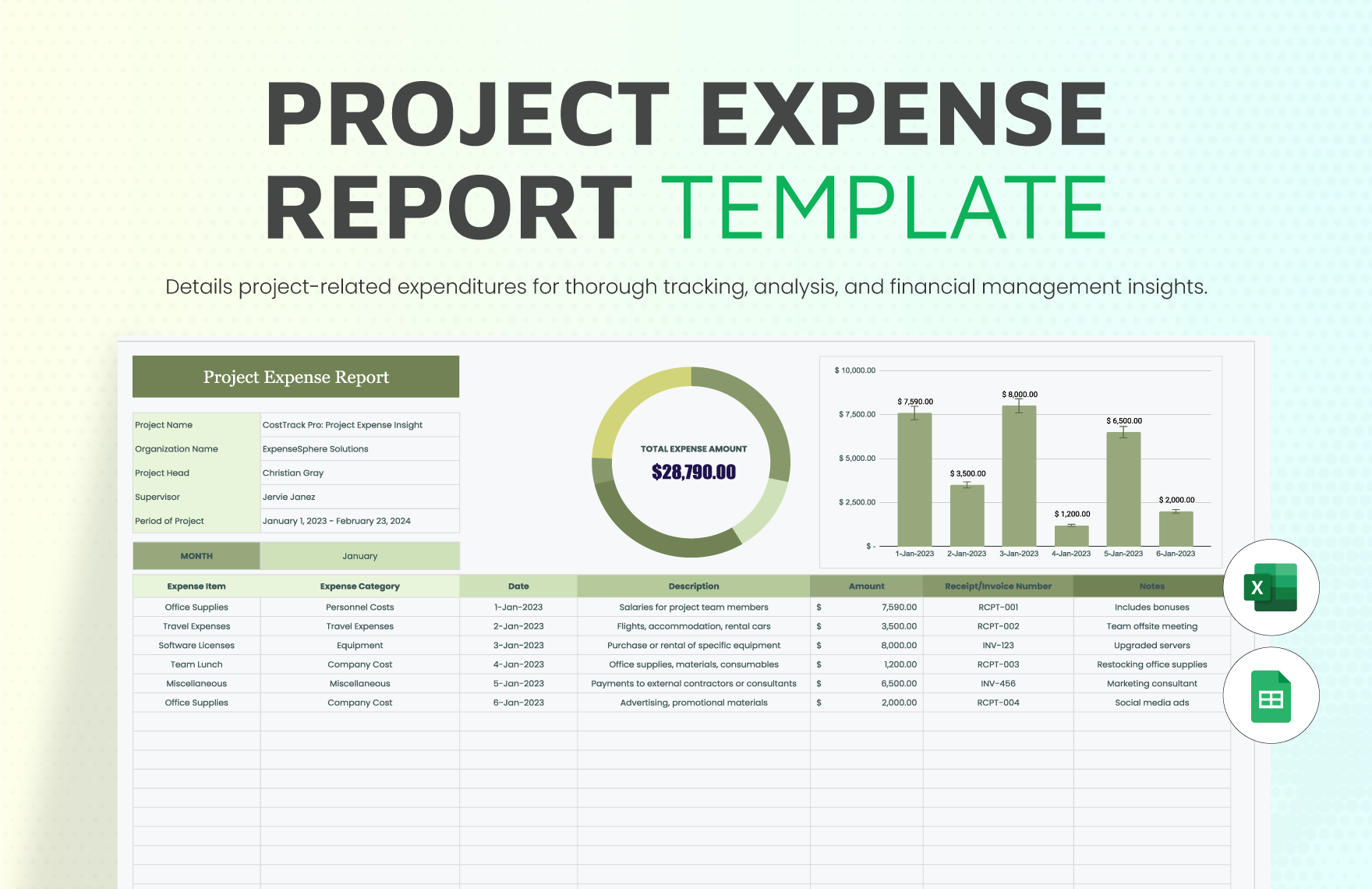
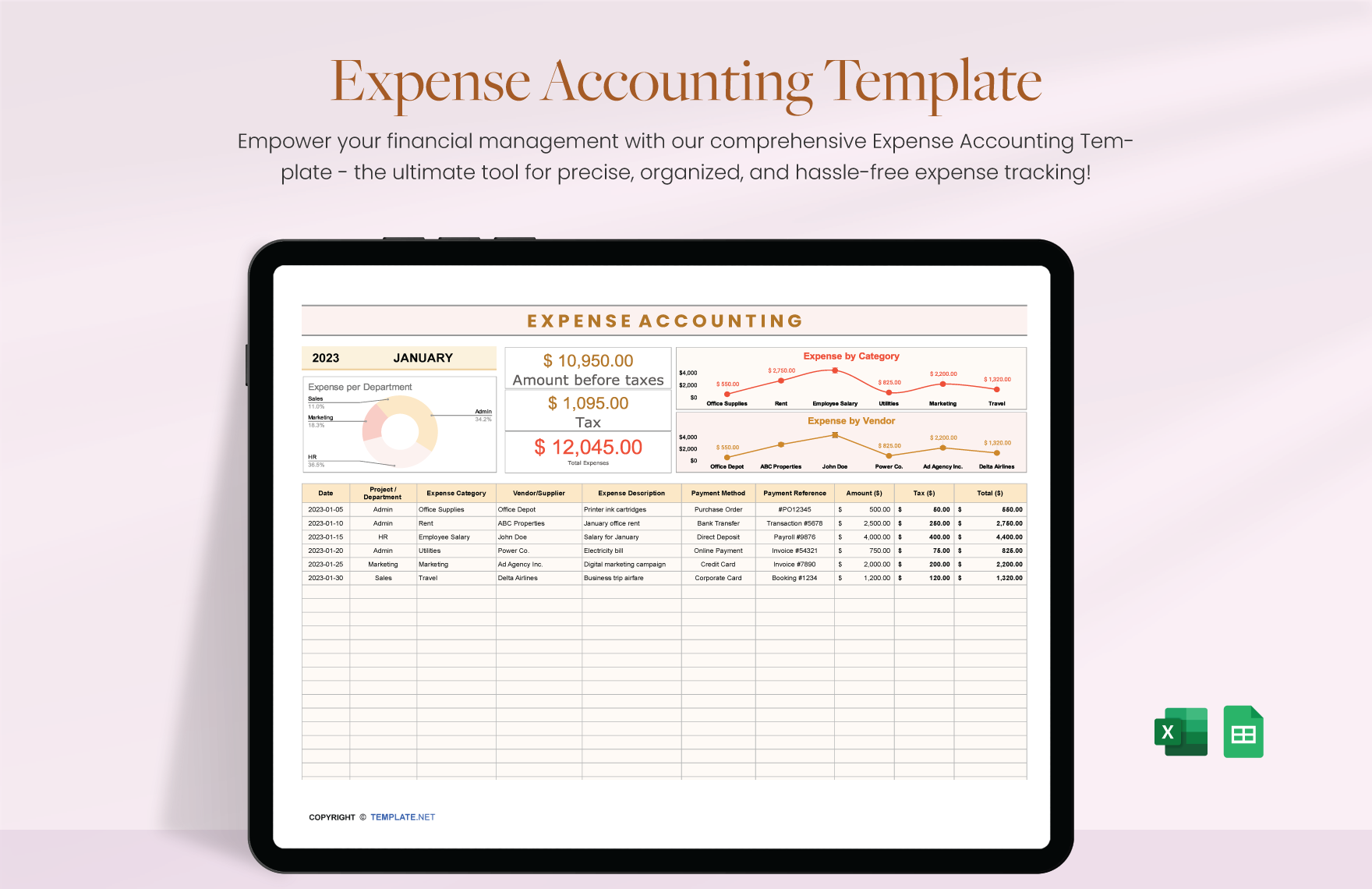
A calendar is excellent for timing, but a detailed list remains essential for analysis. The list should contain one transaction per row whenever possible. This structure supports sorting, filtering, category summaries, and data validation.
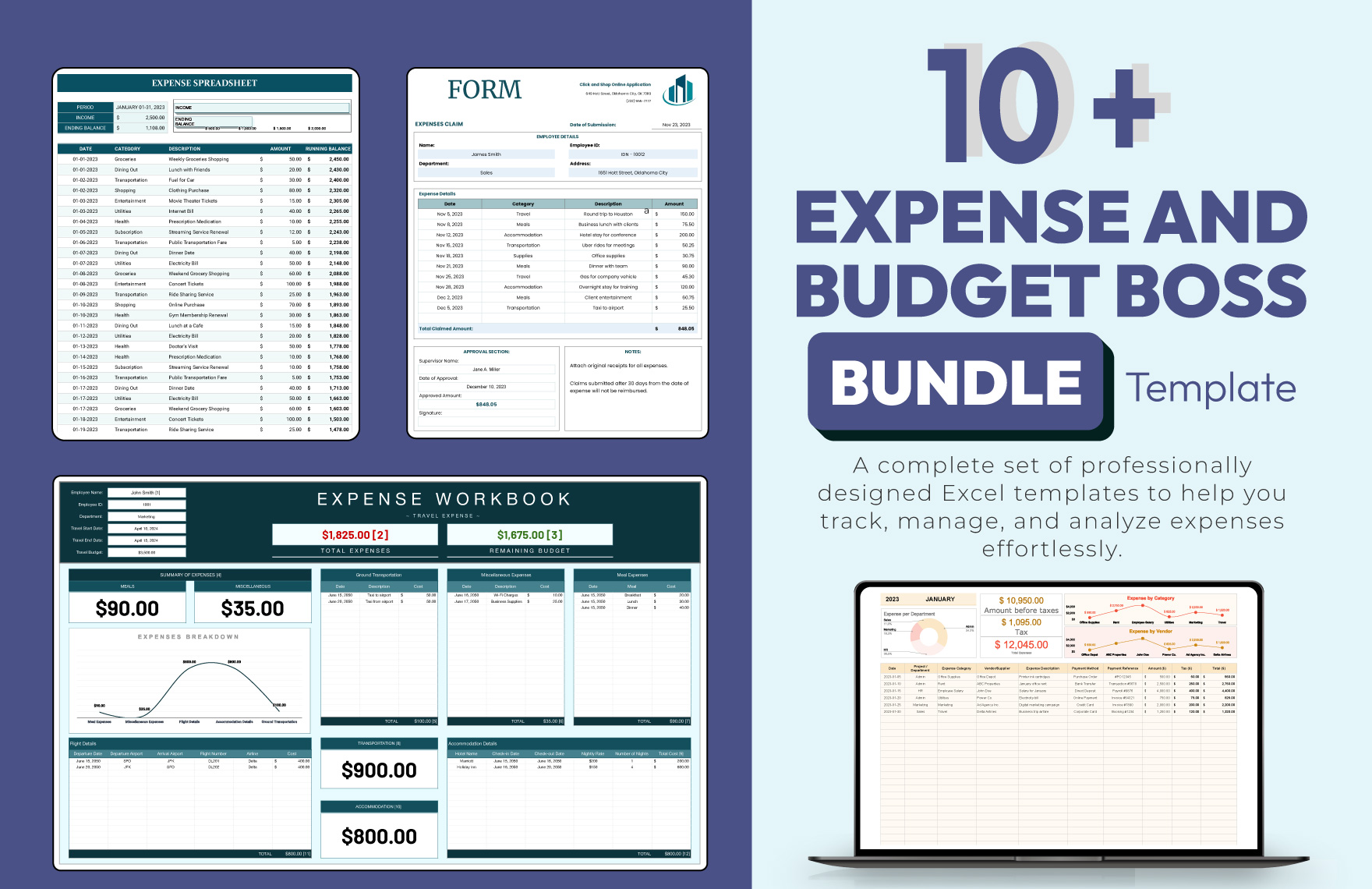
A practical list might contain Date, Vendor, Description, Category, Planned Amount, Actual Amount, Payment Method, Department, Project, Status, and Notes. Personal users can simplify this to Date, Description, Category, Amount, Payment Method, and Notes.
The calendar can then summarize the list by date. If five transactions occur on the same day, the calendar might show the combined daily total while the underlying table preserves the five individual records.
This approach prevents a common mistake: trying to fit every detail directly into calendar cells. Calendar cells are visually constrained. A separate list provides the space needed for descriptions and audit information.
When a monthly list is combined with a calendar, the system supports two different questions. The list answers, “What exactly did we spend?” The calendar answers, “When did spending happen?” Together they provide a much stronger picture of expense activity.
Data Collection and Expense Recording
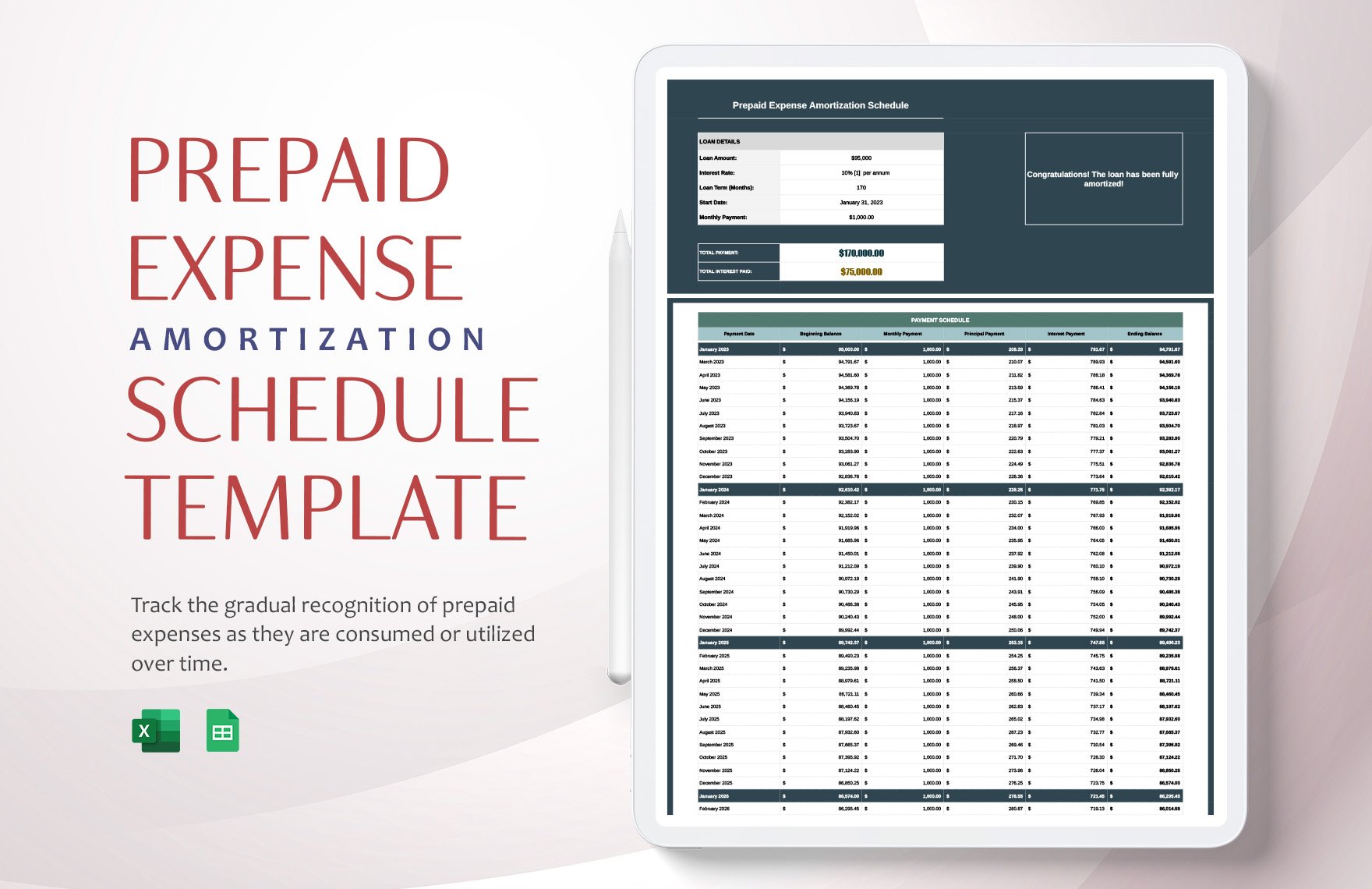
Good expense management begins with reliable data collection. A sophisticated template cannot compensate for missing transactions, inconsistent categories, incorrect dates, or duplicated entries. The recording process should therefore be simple enough that users will actually follow it.
Decide where expenses enter the system. They may be entered manually, imported from a bank statement, copied from receipts, submitted through a form, or transferred from another accounting application. The method can vary, but the resulting transaction structure should remain consistent.
Record transactions close to the time they occur. Waiting until the end of the month increases the chance of forgotten purchases and inaccurate dates. For businesses, delayed entry can also make reimbursement and reconciliation slower.
Use notes for context that is likely to matter later. A note such as “annual license renewal” or “client meeting” can explain why an expense exists without forcing the category system to become overly detailed.
At the end of each week, perform a quick completeness check. Compare the calendar and transaction list against receipts, account activity, invoices, or other legitimate records. The objective is not to create unnecessary administrative work but to catch omissions while they are still easy to correct.
Data Analysis: What to Measure
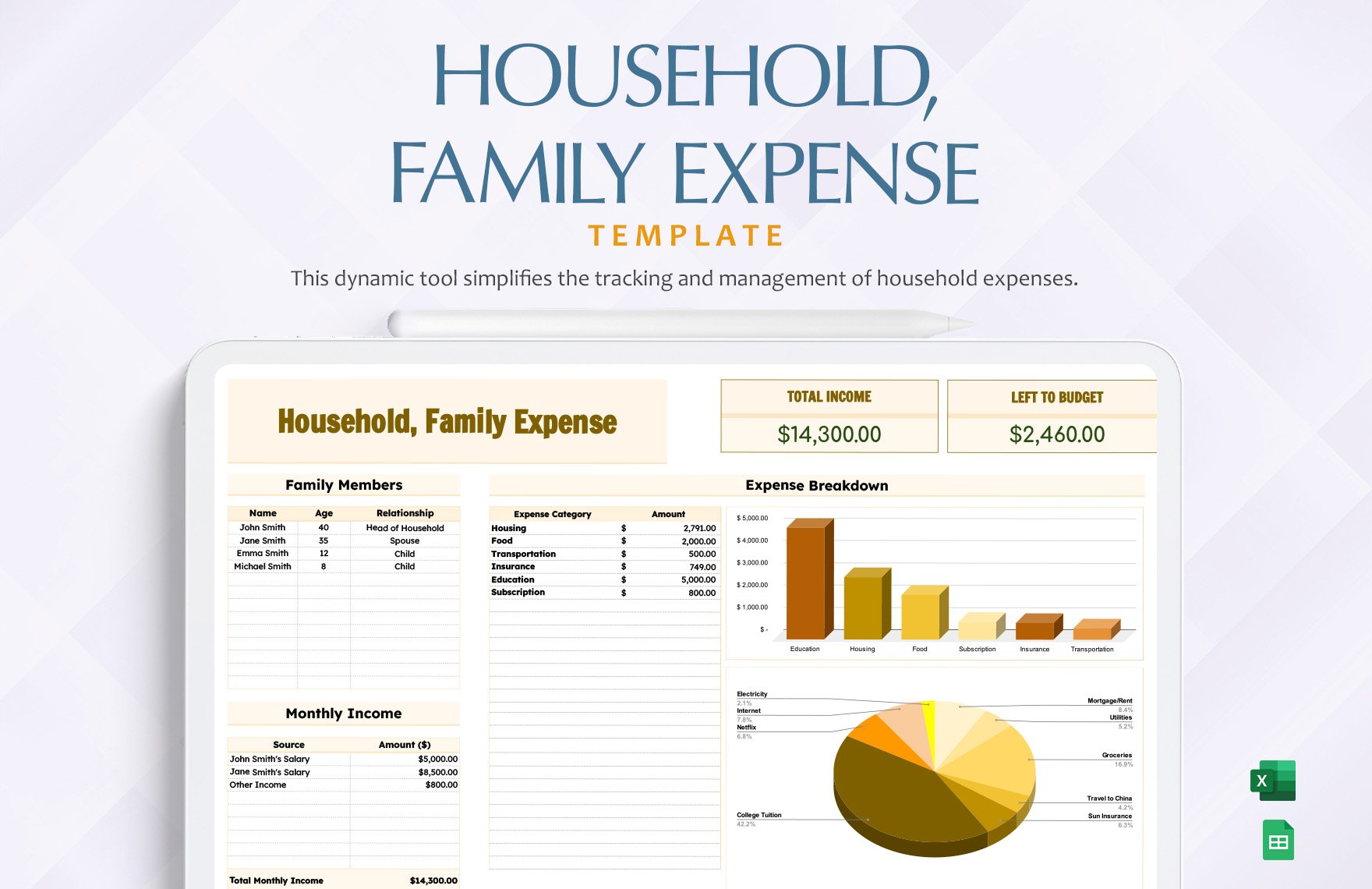
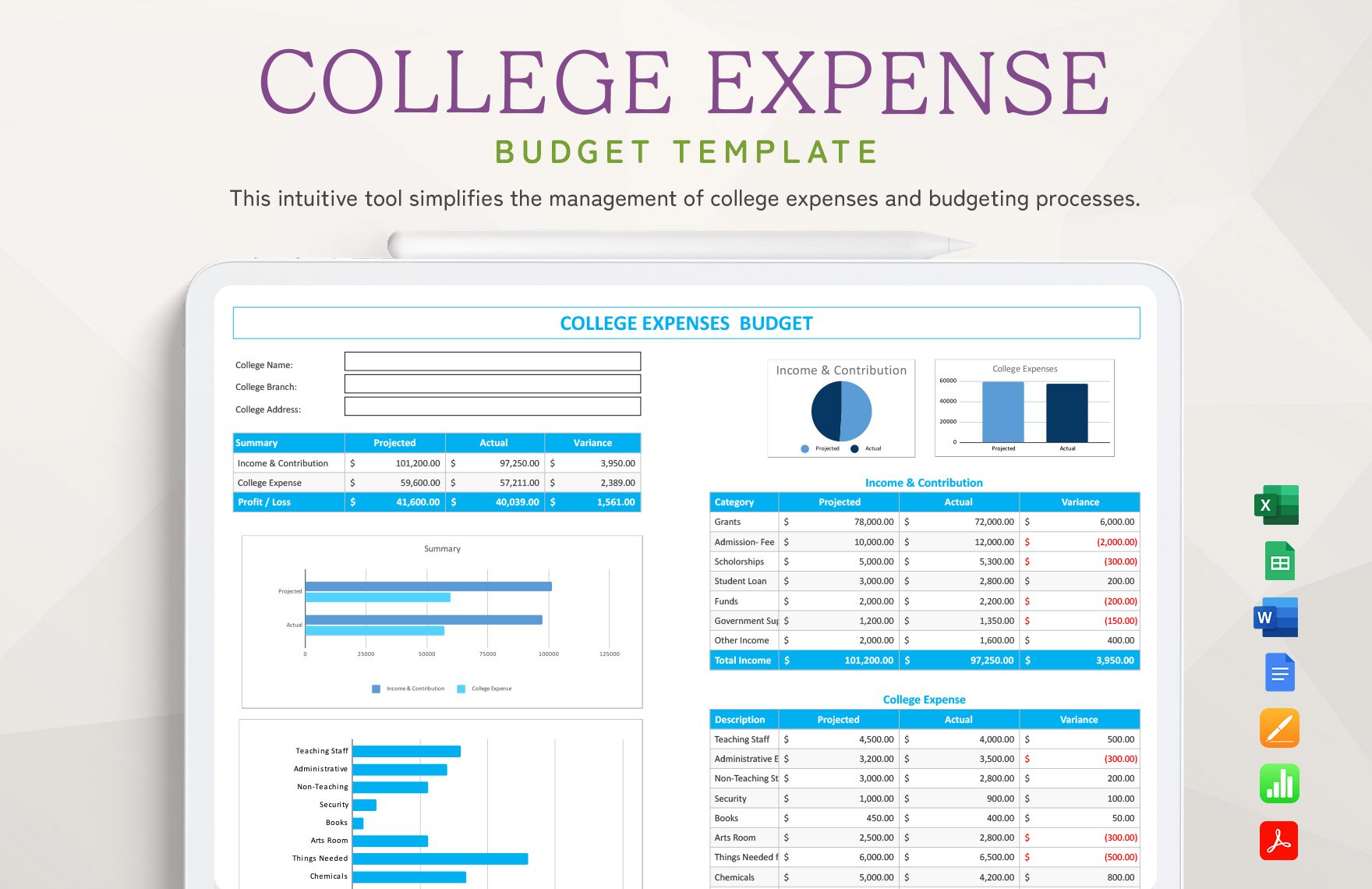
An expense calendar becomes more valuable when it supports analysis rather than merely recording transactions. Start with basic totals: total planned spending, total actual spending, remaining budget, and total unpaid obligations.
Next, analyze spending by category. This identifies where money is concentrated. A household might discover that several small subscription charges add up to a meaningful monthly commitment. A business might discover that travel or software costs are consistently higher than planned.
Timing analysis is equally important. Calculate total spending by week or by day and look for clusters. If a large percentage of monthly obligations falls during the first week, management may need to plan cash reserves accordingly.
Variance analysis compares expectations with reality. Repeated unfavorable variances can signal that the original budget is unrealistic, prices have changed, usage has increased, or purchasing controls need improvement.
Trend analysis compares several months. One month alone can be misleading. A three-, six-, or twelve-month view can reveal whether a category is growing, shrinking, remaining stable, or becoming more volatile.
Reporting From the Calendar
A monthly expense report should begin with a concise summary. Include the reporting period, total planned expenses, actual expenses, variance, and outstanding commitments. These figures give the reader an immediate understanding of the month’s position.
Follow the summary with category-level detail. A simple table can show each category’s planned amount, actual amount, variance, and percentage of total spending. The goal is to help readers identify significant changes rather than force them to interpret dozens of raw transactions.
A calendar view can then explain the timing behind the numbers. If actual spending was high because several annual obligations were paid during the month, the calendar makes that explanation easier to see.
For management reporting, keep commentary focused on exceptions. Explain significant overspending, unexpected commitments, delayed payments, major savings, or unusual timing. A report is more useful when it tells the reader what deserves attention.
At the end of the reporting cycle, archive the completed period according to the organization’s document-retention practices. Preserve the data structure so future months can be compared consistently without overwriting historical information.
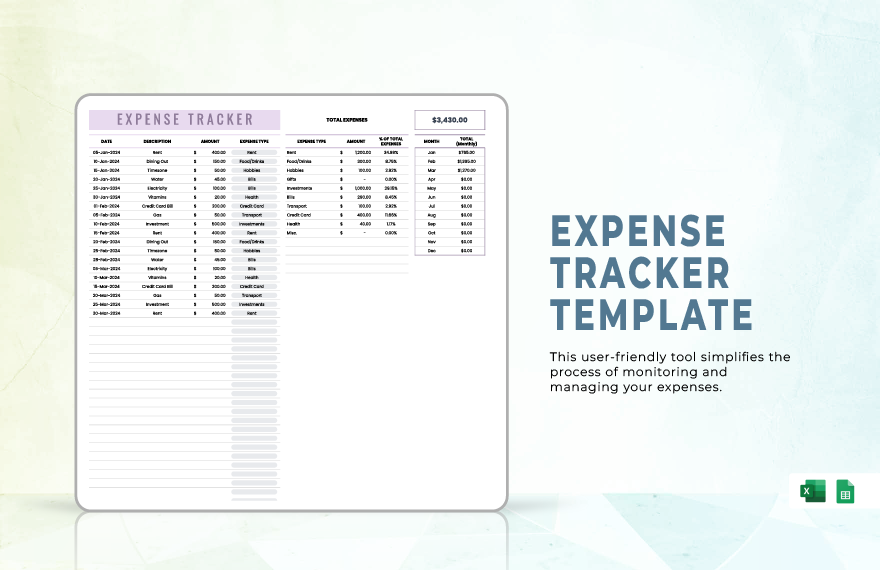
How to Make a Template Printable
A printable expense calendar should be designed differently from a screen-first spreadsheet. The most important information needs to remain readable on paper, with enough space for handwritten notes if the document will be used manually.
Set the page orientation according to the layout. A seven-column monthly calendar often benefits from landscape orientation because the columns need enough width for dates and short expense descriptions.
Keep the number of colors limited and make sure important distinctions do not depend entirely on color. A printed document may be photocopied or printed in grayscale, so labels and headings should remain understandable without color.
Consider using a separate printable transaction sheet when the calendar itself becomes too crowded. The calendar can provide the high-level schedule while the transaction sheet provides detailed entries for receipts, vendors, amounts, and notes.
Before distributing a printable version, inspect the page-break preview or print preview. Check that headings are not separated from their tables, dates are visible, and totals appear on the intended page. A professional template should be useful both digitally and on paper.
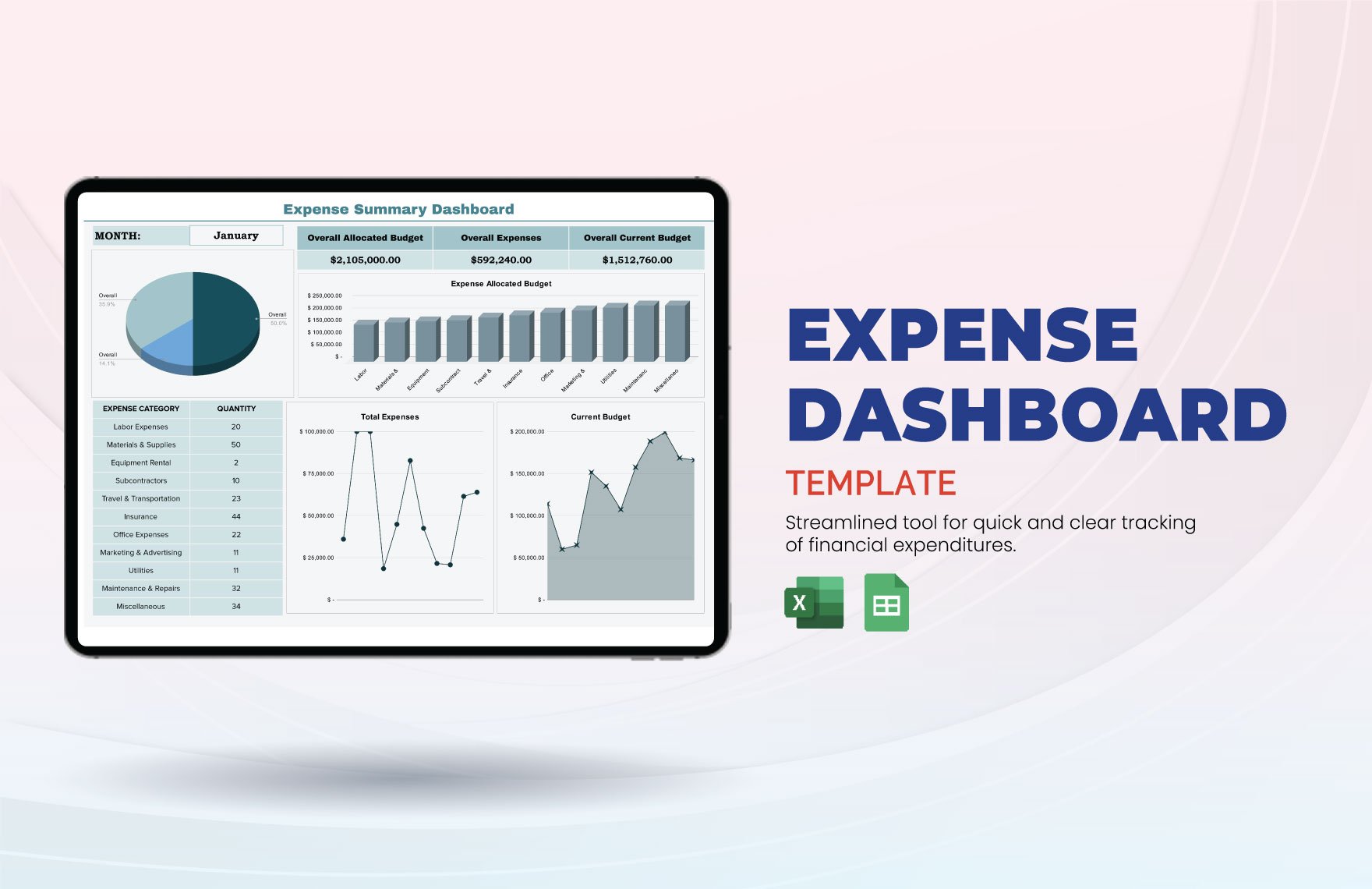
When to Use PDF, Word, Excel, or Google Sheets
Excel is usually strongest when calculations, formulas, sorting, filtering, and structured financial analysis are central to the workflow. It is particularly useful when the calendar needs formulas that summarize a transaction database.
Google Sheets is well suited to collaborative workflows where several authorized users need to view or update the same file. Its online nature also makes it practical for teams that work across locations or devices.
PDF is best treated as a distribution or printing format rather than the primary data-entry environment. A PDF can preserve a consistent layout for review, approval, printing, or archival purposes, but spreadsheet formats are generally easier for calculations and ongoing editing.
Word can be useful when the expense calendar is part of a broader document, such as a policy packet, reimbursement form, meeting document, or manually completed worksheet. It provides strong document formatting but is less convenient for complex calculations.
The right format depends on the workflow. Many organizations can benefit from using a spreadsheet as the working file and generating PDF versions when a stable, shareable or printable report is needed.
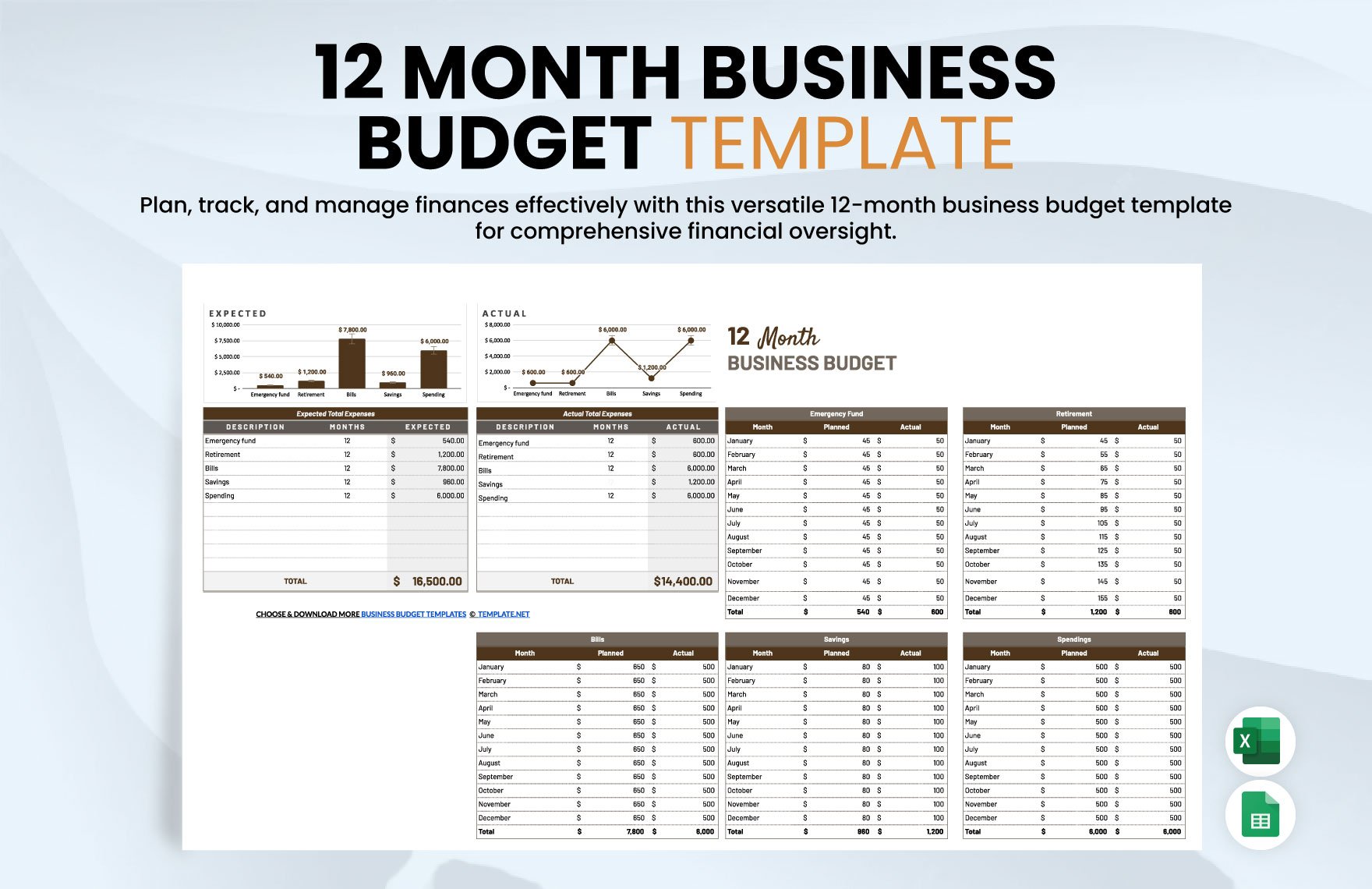
Common Mistakes to Avoid
Tracking only after payment. If the calendar contains only completed transactions, it cannot warn you about upcoming obligations. Include future commitments when they are known.
Using too many categories. A category system with dozens of nearly identical labels creates maintenance problems. Start with broad categories and add detail only when it improves a decision.
Mixing planned and actual values. Never overwrite the original planned amount with the actual payment. Keeping both values is what makes variance analysis possible.
Ignoring irregular expenses. Annual and quarterly obligations can be more disruptive than small monthly bills. Maintain a separate annual planning view so these costs do not become surprises.
Changing formulas accidentally. Protect formula cells where appropriate, especially in shared spreadsheets. Keep input fields visually distinct from calculated fields so users know where they are expected to type.
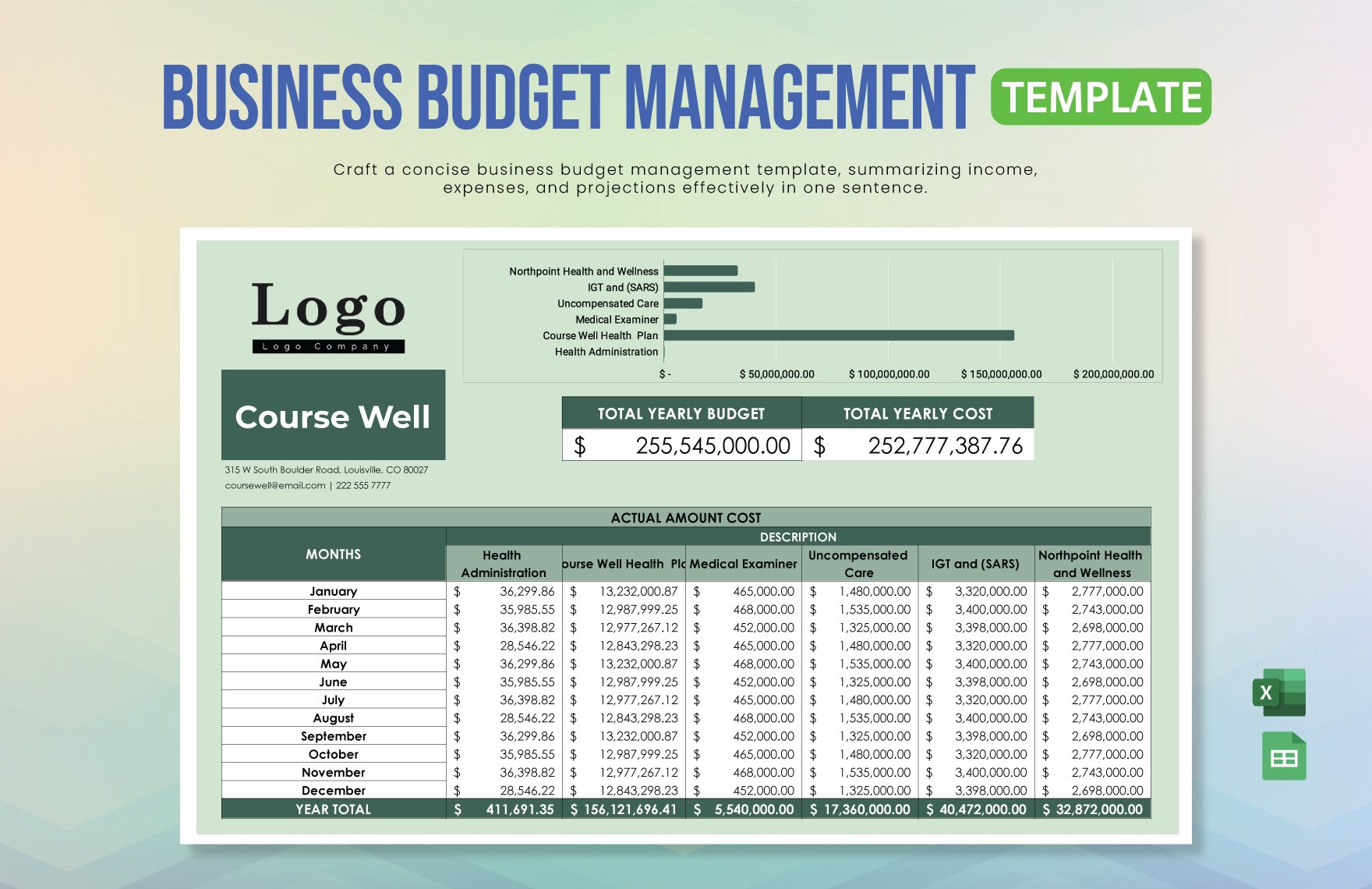
Best Practices for Maintaining the Calendar
Keep one authoritative working file rather than creating multiple versions with similar names. Version confusion is particularly dangerous when different files contain different expense totals.
Use consistent date formatting. A spreadsheet should recognize dates as dates rather than text strings. This matters because formulas, filters, sorting, and calendar calculations depend on proper date values.
Separate input areas from calculation areas. Users should enter information only into designated fields, while formulas calculate totals, variances, balances, and summaries automatically.
Review recurring expenses monthly or quarterly. A calendar can remain technically correct while becoming practically outdated if subscriptions, contracts, or payment amounts change.
Back up important financial work according to your normal data-management procedures. A template is valuable only if the information inside it remains available, accurate, and protected from accidental loss or unauthorized access.
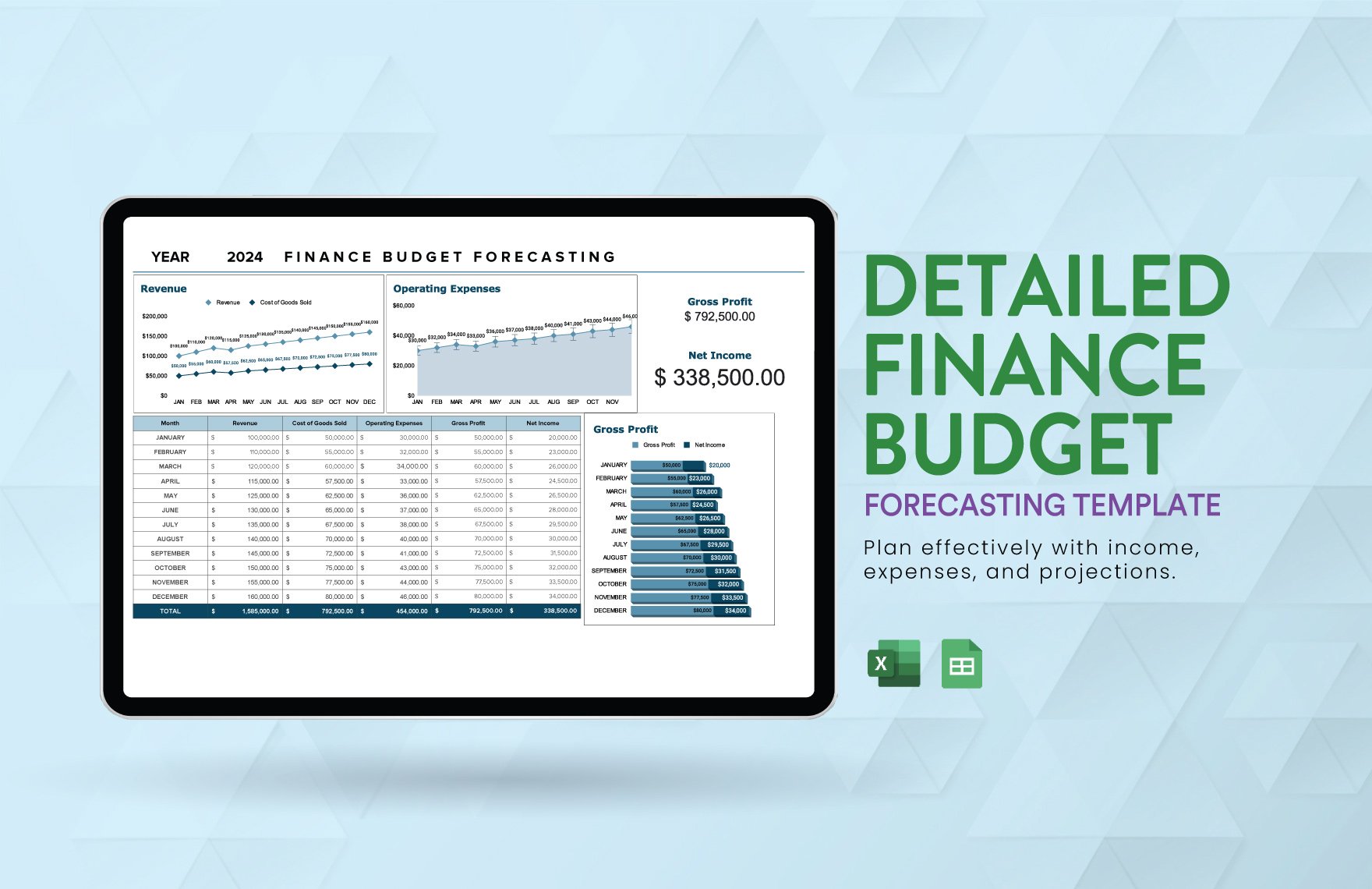
Practical Solution: Build a Simple Expense Management Workflow
The most practical solution is to treat the calendar as one part of a repeatable workflow rather than as a document that is filled in once and forgotten. Start with a transaction table, create a monthly calendar view, add planned and actual amounts, and establish a short review routine.
First, create the master transaction table. Use one row for each expense. Include Date, Description, Category, Planned Amount, Actual Amount, Payment Method, Status, and Notes. For business use, add Vendor, Department, Project, and Reimbursement fields when necessary.
Second, enter known future obligations. Add recurring bills, scheduled invoices, subscriptions, contract renewals, and other predictable commitments. Do this before the month begins so the calendar can function as a forward-looking planning tool.
Third, add expected income dates when cash timing matters. This is especially useful for households paid on fixed schedules and businesses with uneven customer receipts. Comparing income dates against expense dates provides a clearer picture than looking at monthly totals alone.
Fourth, review the calendar weekly. Look seven to fourteen days ahead. Confirm upcoming amounts, check whether large payments are funded, and update the status of expenses that have already been paid.
Fifth, reconcile the completed period. Compare actual transactions with legitimate financial records, correct duplicates, identify missing entries, and preserve the final month’s totals before starting the next cycle.
Sixth, perform a monthly analysis. Compare planned versus actual spending, review category totals, identify large variances, and look for recurring patterns. Use those findings to improve the next month’s assumptions rather than simply recording the same mistakes again.
Seventh, simplify continuously. Remove fields that nobody uses, combine categories that do not provide useful insight, and automate repetitive calculations. A simple system that is maintained consistently is more effective than a sophisticated template that users avoid.
Reference Examples
The following visual examples represent different spreadsheet, calendar, budgeting, printable, and document-oriented approaches to expense management. They are examples for inspiration rather than claims that a specific format is universally required.
expense management calendar template excel
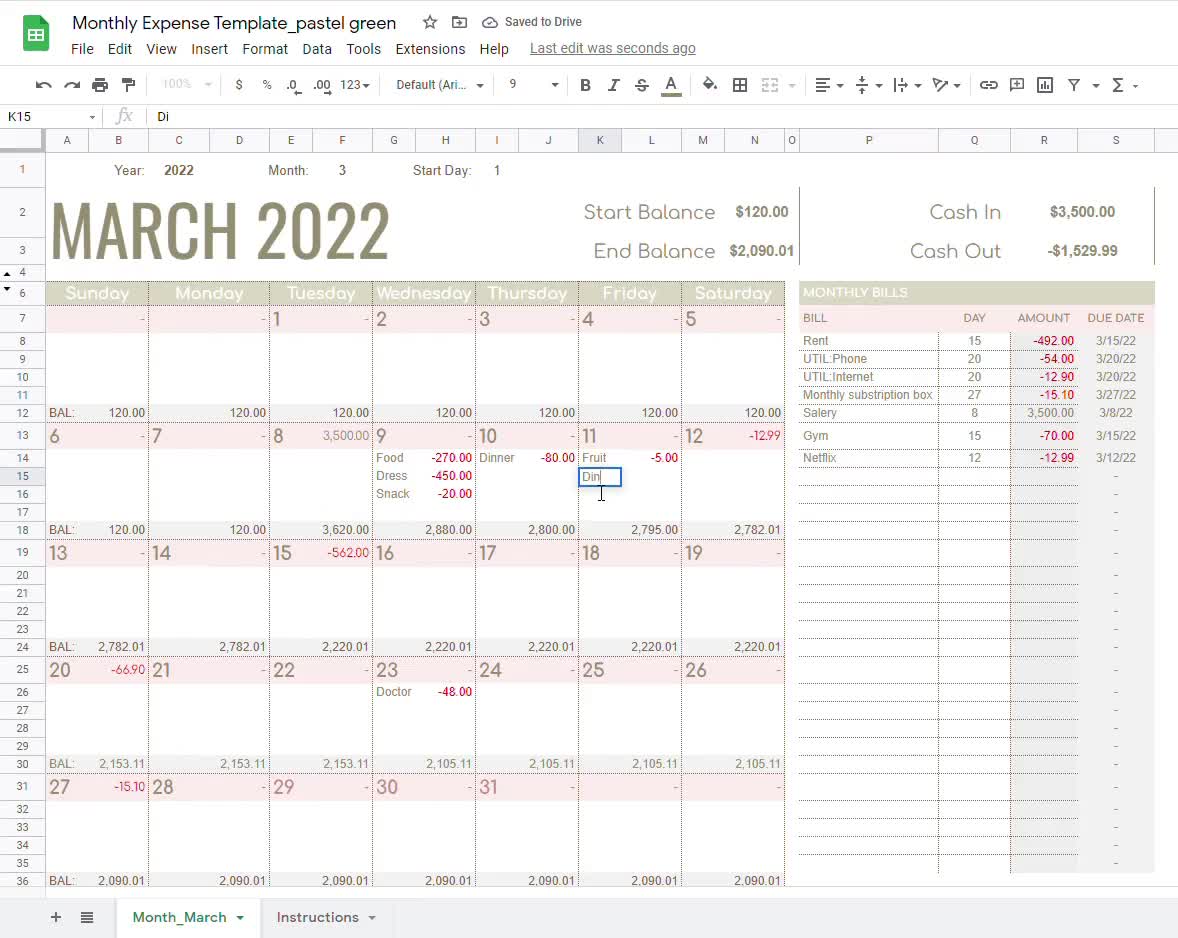
Source: Etsy-hosted image asset
expense management calendar template google sheets
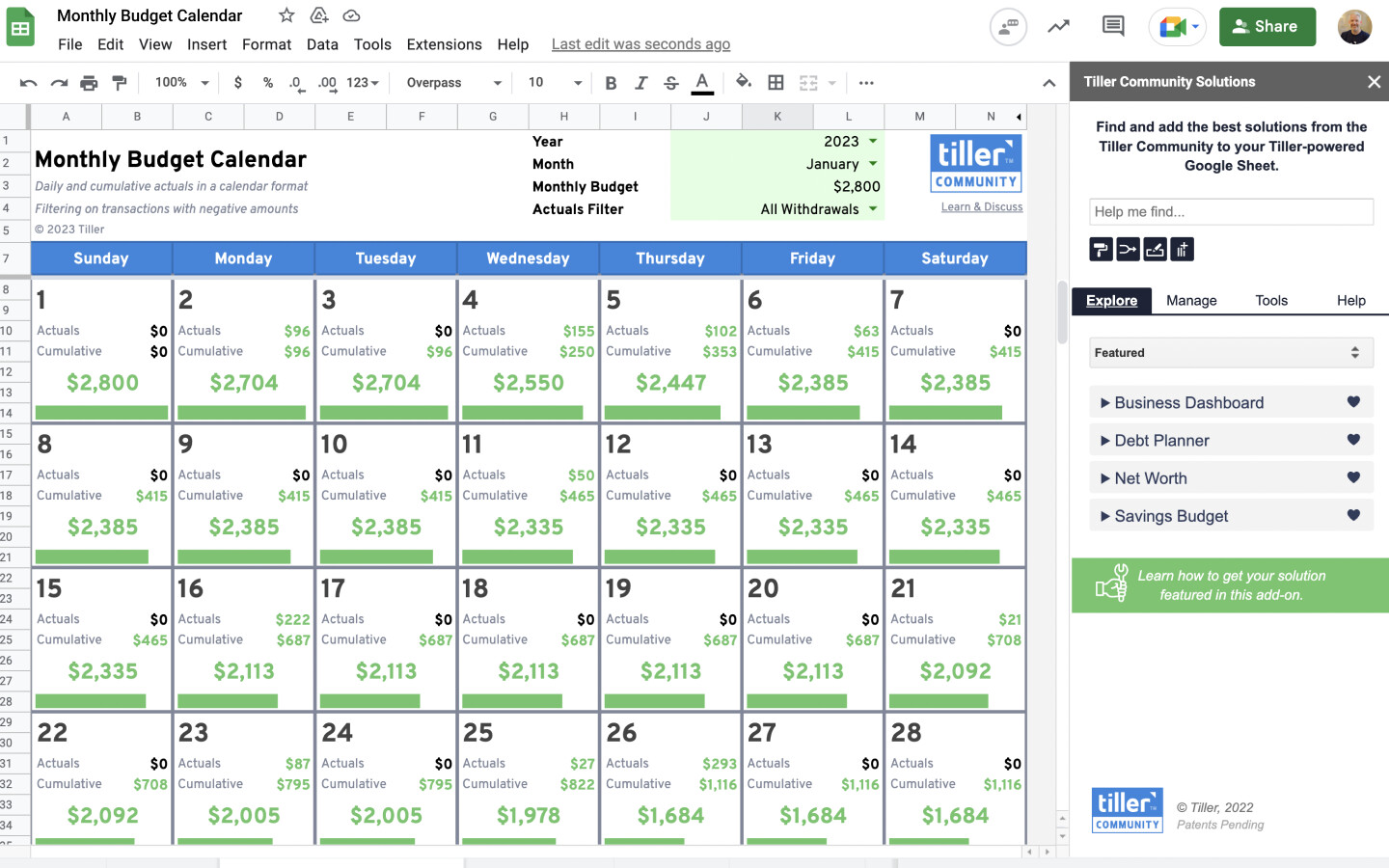
Source: Tiller Community
expense management calendar template free
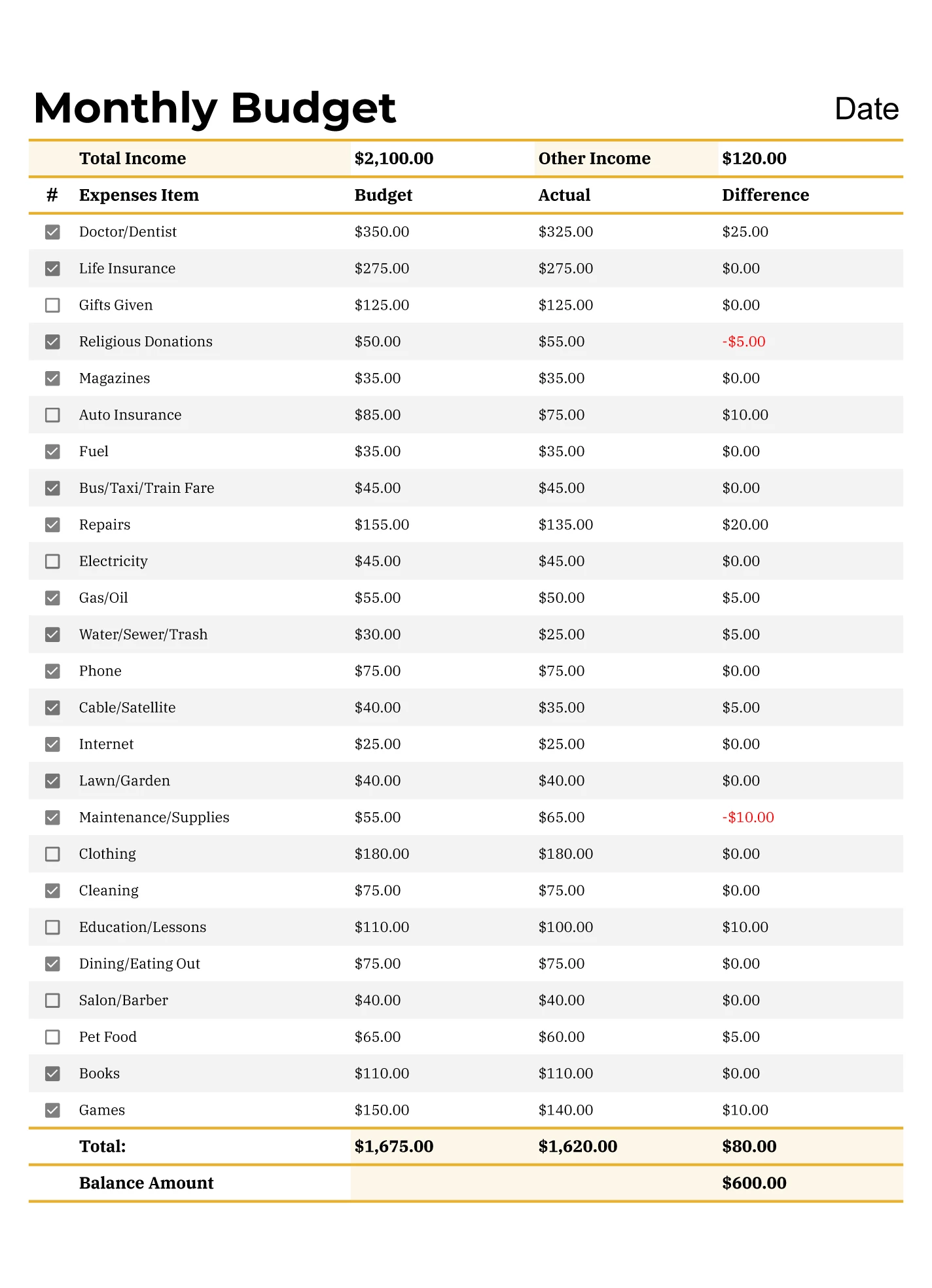
Source: gdoc.io
expense management calendar template pdf
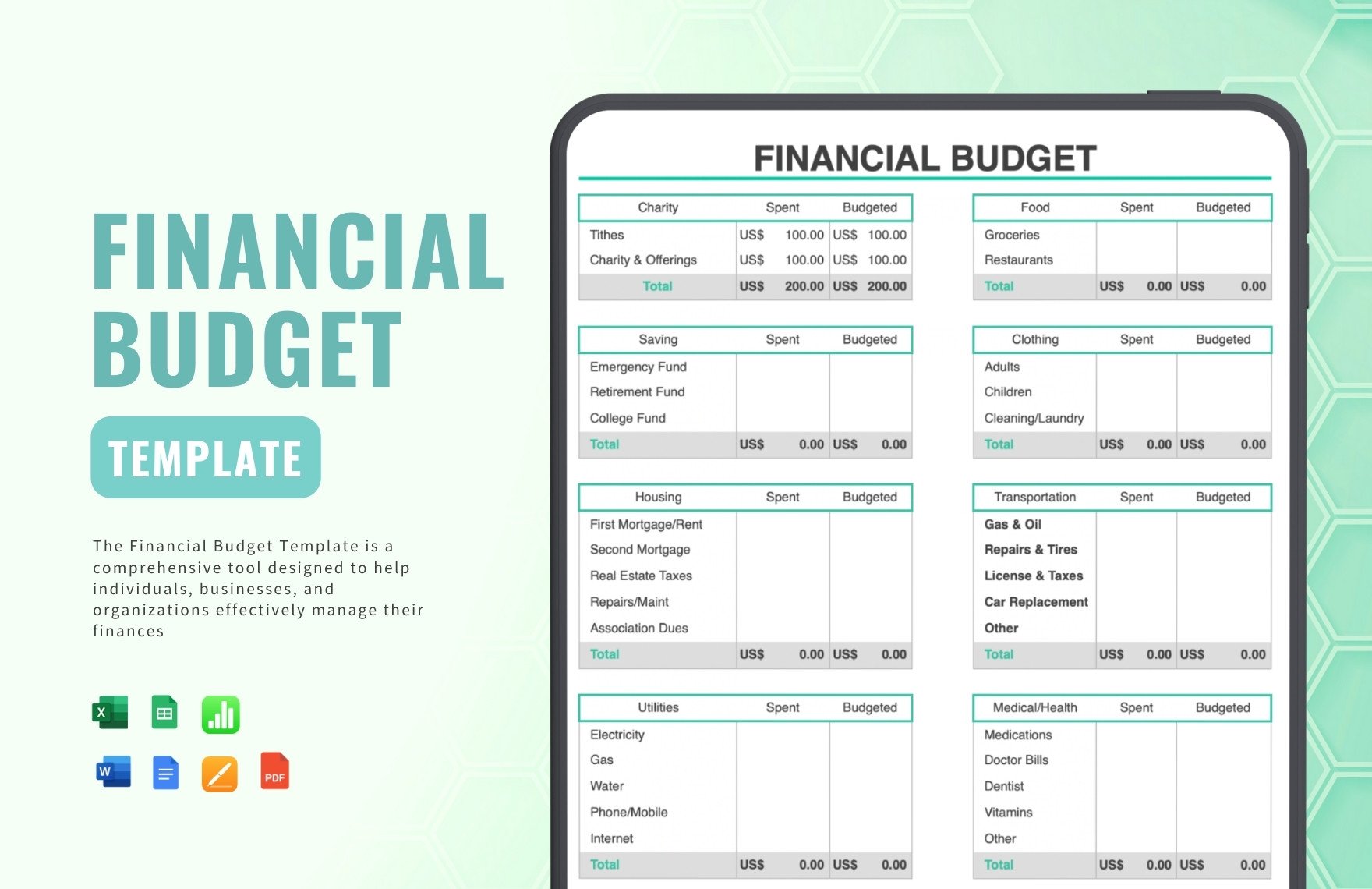
Source: Template.net
expense management calendar template free download
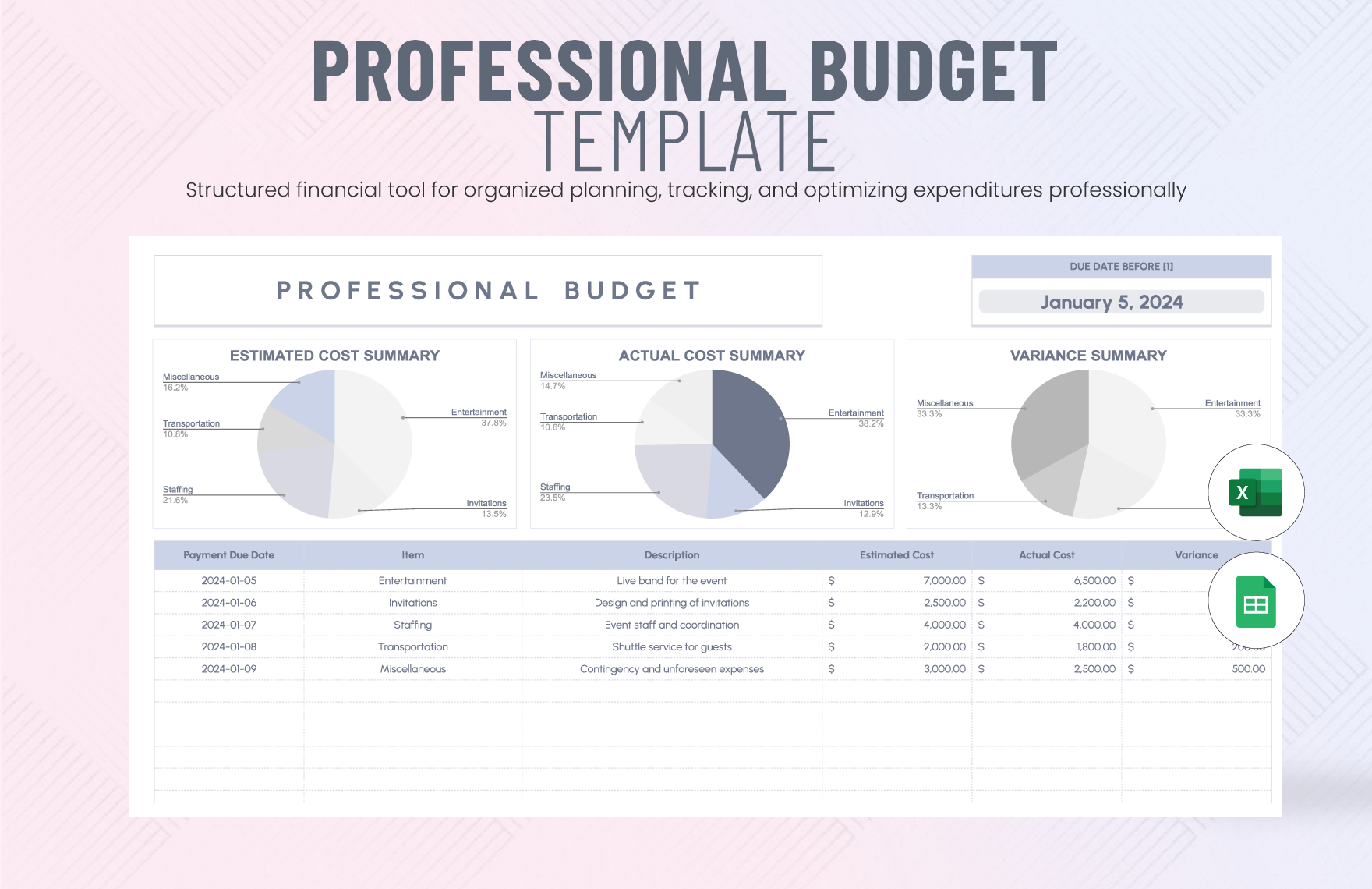
Source: Template.net
expense management calendar template printable
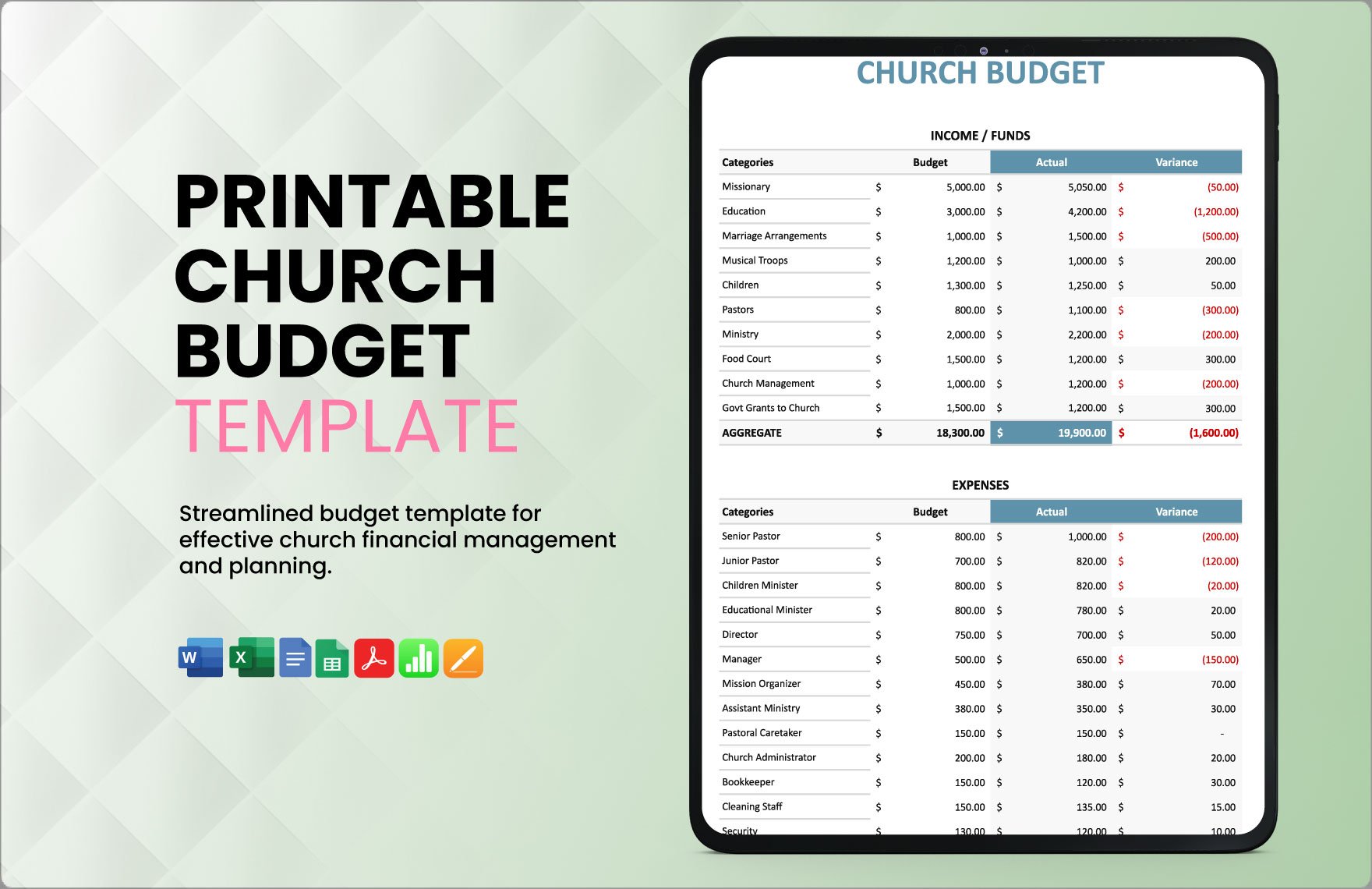
Source: Template.net
expense management calendar template word
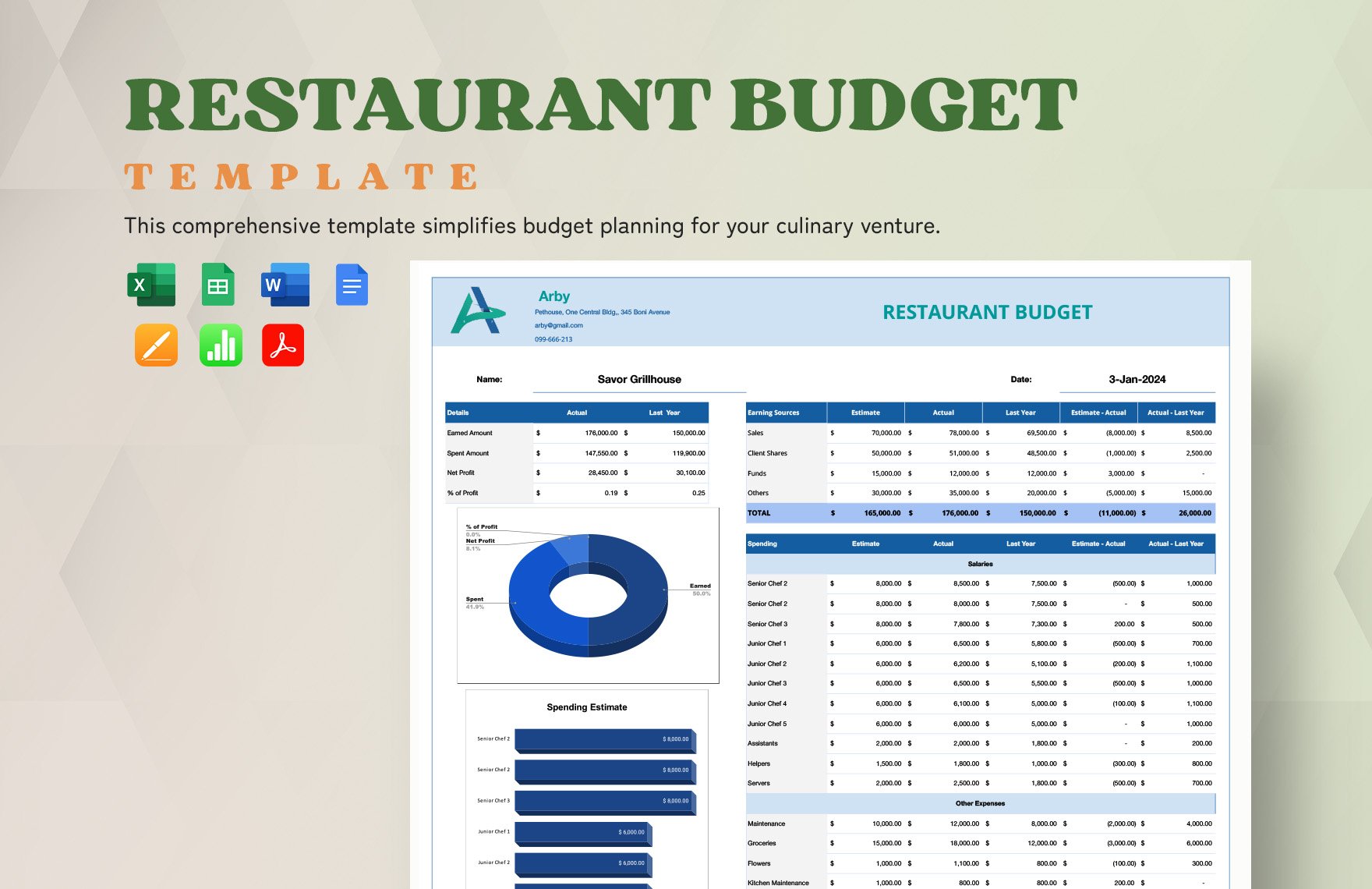
Source: Template.net
excel expense calendar template
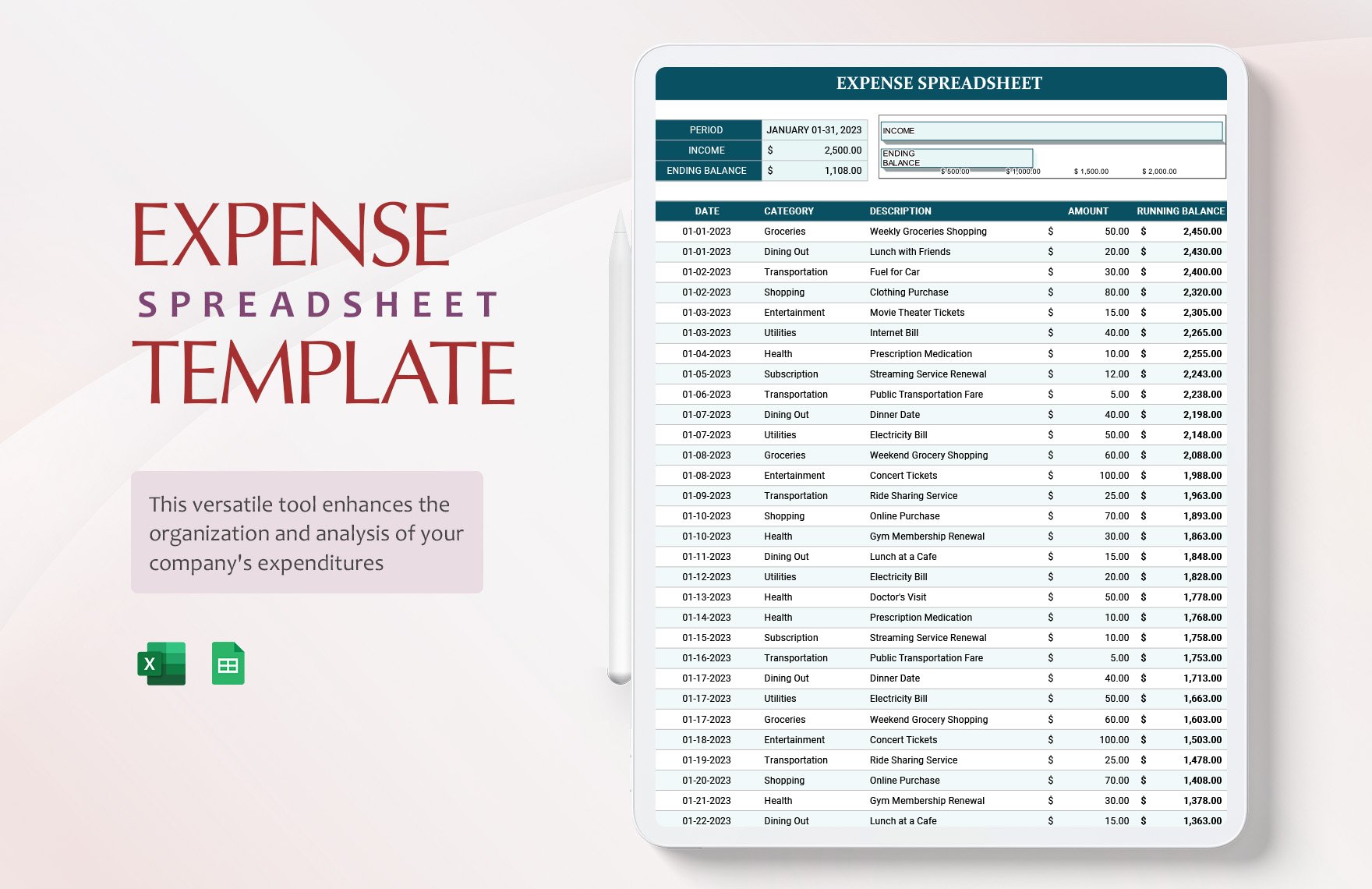
Source: Template.net
monthly expense calendar spreadsheet template
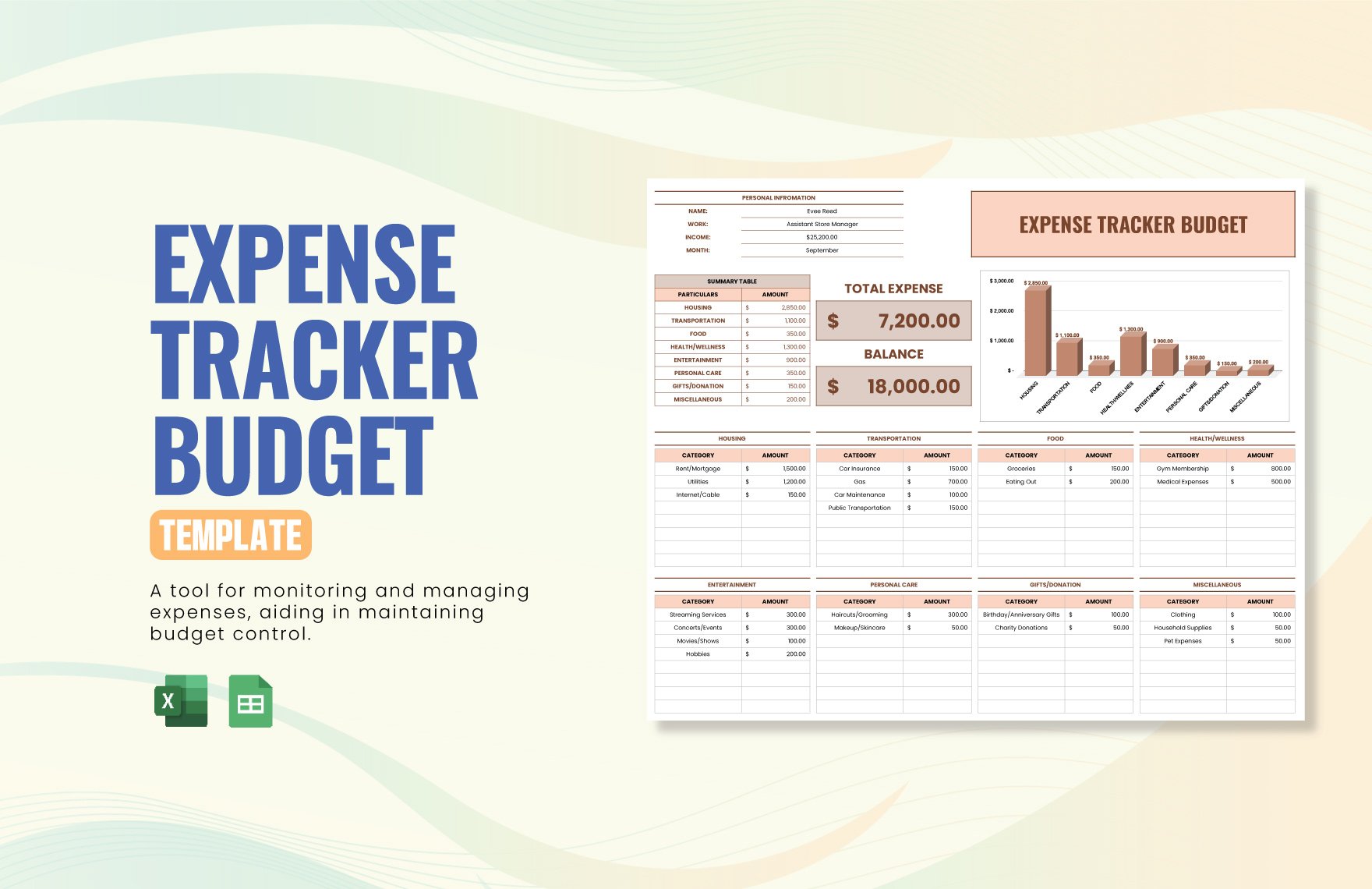
Source: Template.net
expense management program template
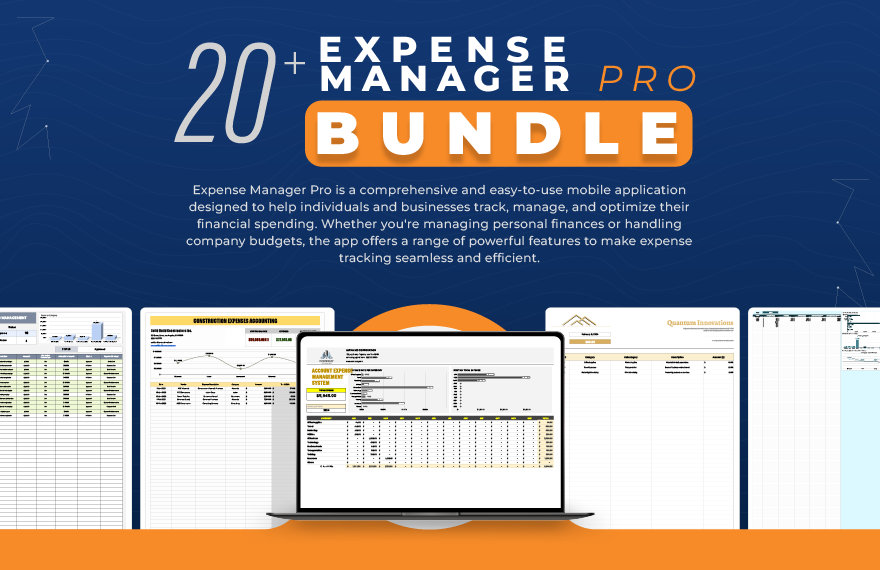
Source: Template.net
expenses calendar excel template
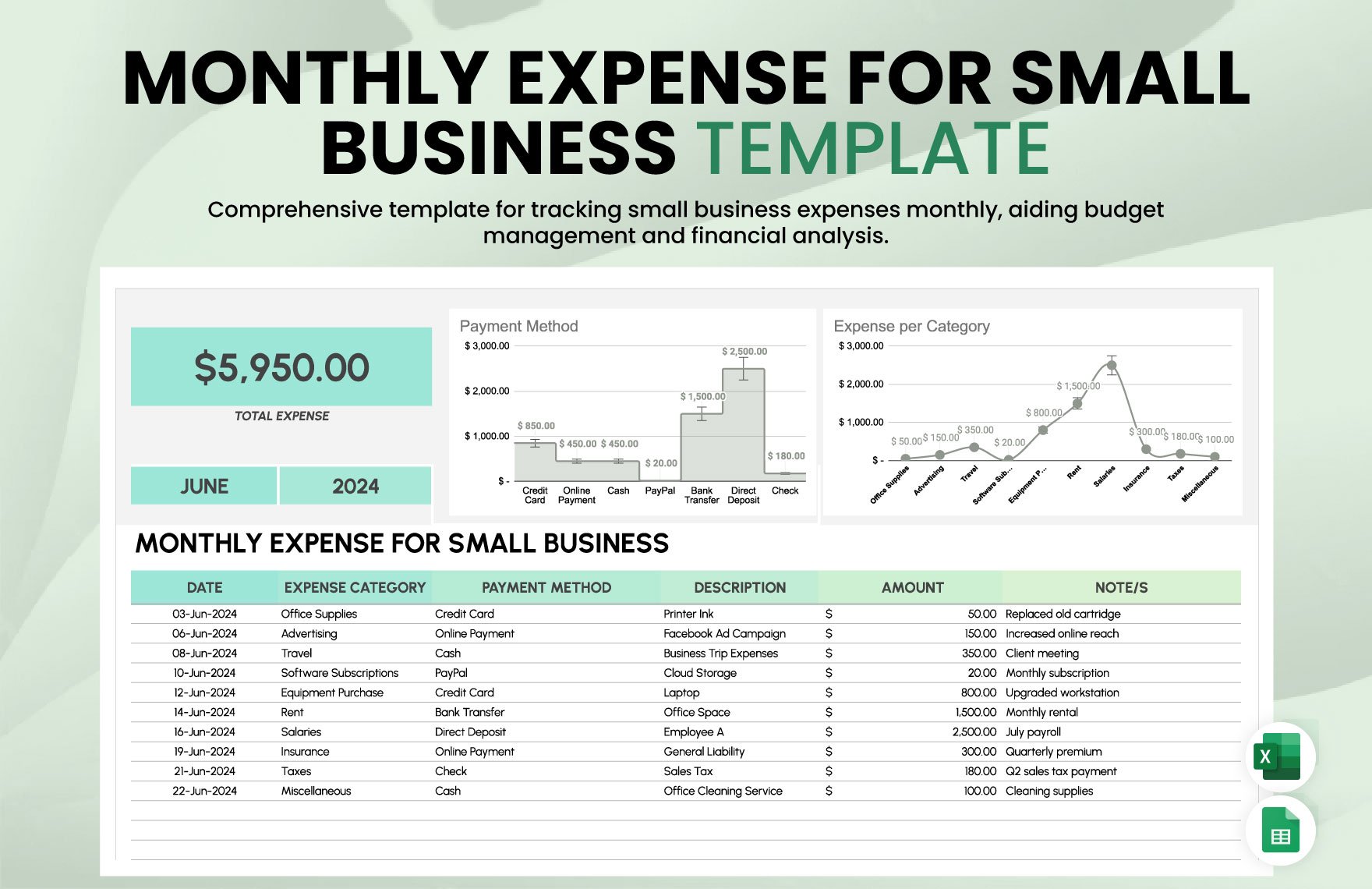
Source: Template.net
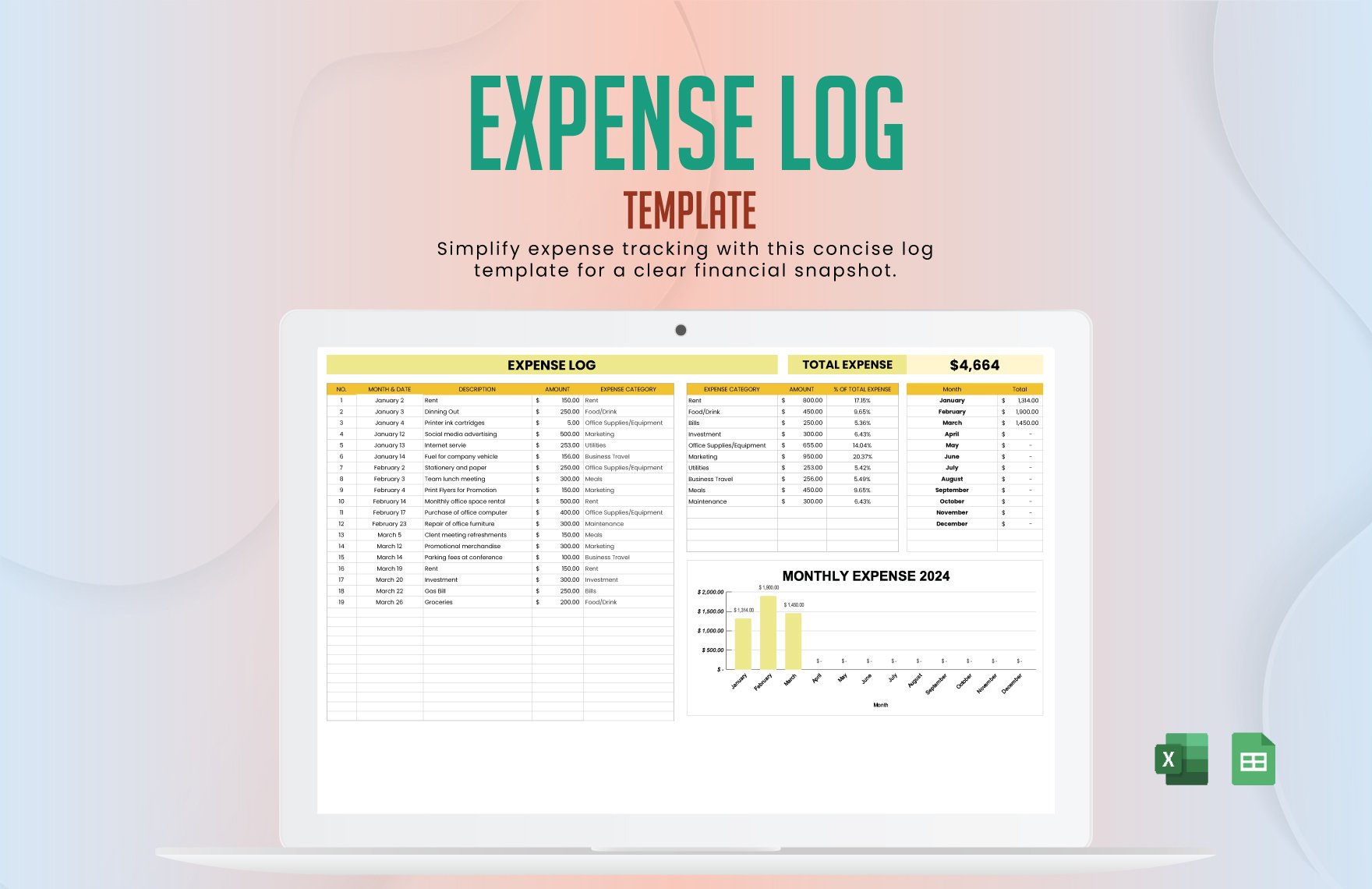
monthly expense list template
Source: Template.net
Frequently Asked Questions
What is the main purpose of an expense management calendar template?
The main purpose is to organize expenses by date so you can see upcoming obligations, monitor actual spending, compare costs with a budget, and understand how expenses affect cash flow throughout a month or other reporting period.
Is an expense calendar better than a normal budget spreadsheet?
They solve different problems. A budget emphasizes planned amounts and financial limits, while a calendar emphasizes timing. Combining both gives you a stronger view of how much you expect to spend and when the money will be needed.
Can I create an expense calendar in Excel?
Yes. Excel can combine a transaction table, monthly calendar, formulas, conditional formatting, summaries, and charts. A good design keeps detailed transactions in a table and uses the calendar as a visual summary.
Can an expense calendar be used in Google Sheets?
Yes. Google Sheets can be used to create a shared transaction table and calendar view. Data validation, formulas, filters, protected ranges, and sharing permissions can make the workflow easier to manage collaboratively.
Should planned and actual expenses be separate?
Yes. Keeping both values allows you to calculate variance and understand where spending differed from expectations. Replacing planned amounts with actual values removes useful historical information.
What expenses should be included?
Include recurring bills, scheduled payments, variable spending, subscriptions, reimbursements, project costs, annual obligations, and any other expenses that materially affect the budget or cash-flow plan.
How often should an expense calendar be updated?
For active personal or business finances, weekly review is a practical minimum. High-volume businesses may update expenses daily. The important factor is consistency and timely recording rather than a particular schedule.
Can a printable expense calendar replace accounting software?
Usually not for organizations with complex accounting requirements. A printable calendar is excellent for planning and manual tracking, but formal accounting, tax reporting, reconciliation, approvals, and audit requirements may require more specialized systems.
What is the simplest structure for a new user?
Start with Date, Description, Category, Planned Amount, Actual Amount, Status, and Notes. Add more fields only after you identify a genuine reporting or workflow need.
How can I prevent an expense calendar from becoming too complicated?
Keep the calendar focused on timing and high-level information. Store detailed transaction data in a separate table, use consistent categories, protect formulas, and review whether each field actually supports a decision.
Conclusion
A well-designed expense management calendar template is more than a list of bills. It is a practical planning system that connects dates, spending, budgets, cash flow, categories, payment status, and financial review. Whether you build it in Excel, Google Sheets, Word, PDF, or a printable format, the strongest approach is to keep detailed transaction records separate from the visual calendar while maintaining a consistent relationship between the two. Start with a small set of useful fields, record future obligations early, update actual spending regularly, review planned-versus-actual differences, and use the completed history to improve future decisions. The result is a clearer financial picture and a repeatable process for controlling expenses rather than simply documenting them after the money is gone.
