A word business invoice is a practical way to create clear, professional invoices without needing specialized accounting software. Whether you run a small business, work as a freelancer, provide consulting services, or manage a growing company, a well-designed invoice helps you present charges clearly and makes it easier for customers to understand what they owe.
Microsoft Word is particularly useful for businesses that want a flexible invoice format. You can customize your company name, logo, contact information, payment terms, services, prices, and other details while keeping the document easy to edit and print. A reusable business invoice template can also save valuable time because you do not need to create every invoice from scratch.
In this guide, you will learn what a Word business invoice should contain, how to structure one professionally, what information to include, and how to make your invoice easier for customers to read and pay.
What Is a Word Business Invoice?
A Word business invoice is a document created in Microsoft Word that records the products or services provided by a business and the amount a customer needs to pay. It serves as a formal payment request and provides both the business and customer with a useful record of a transaction.
Unlike a simple receipt, an invoice is generally issued when payment is requested for goods or services. Depending on the business and local requirements, an invoice may include information such as the invoice number, issue date, payment due date, customer details, item descriptions, quantities, prices, taxes, discounts, and the final amount due.
A Word format is convenient because it allows business owners to make changes quickly. You can add your branding, adjust table columns, modify colors, and save the finished document as a reusable template.
Why Use a Word Business Invoice Template?
Creating invoices manually can become repetitive, especially when you bill customers regularly. A reusable business invoice template for Word gives you a consistent starting point for every transaction.
Some of the main advantages include:
- Time savings: Start with an existing layout instead of building an invoice from a blank document.
- Professional presentation: A structured design makes your business appear organized and credible.
- Easy customization: Change company details, colors, fonts, services, and payment information whenever necessary.
- Consistent branding: Use the same logo, business name, and visual style across your invoices.
- Simple editing: Microsoft Word makes it easy to correct information before sending an invoice.
- Printable format: Word invoices can be printed or saved as PDF files for electronic delivery.
What Should a Professional Word Business Invoice Include?
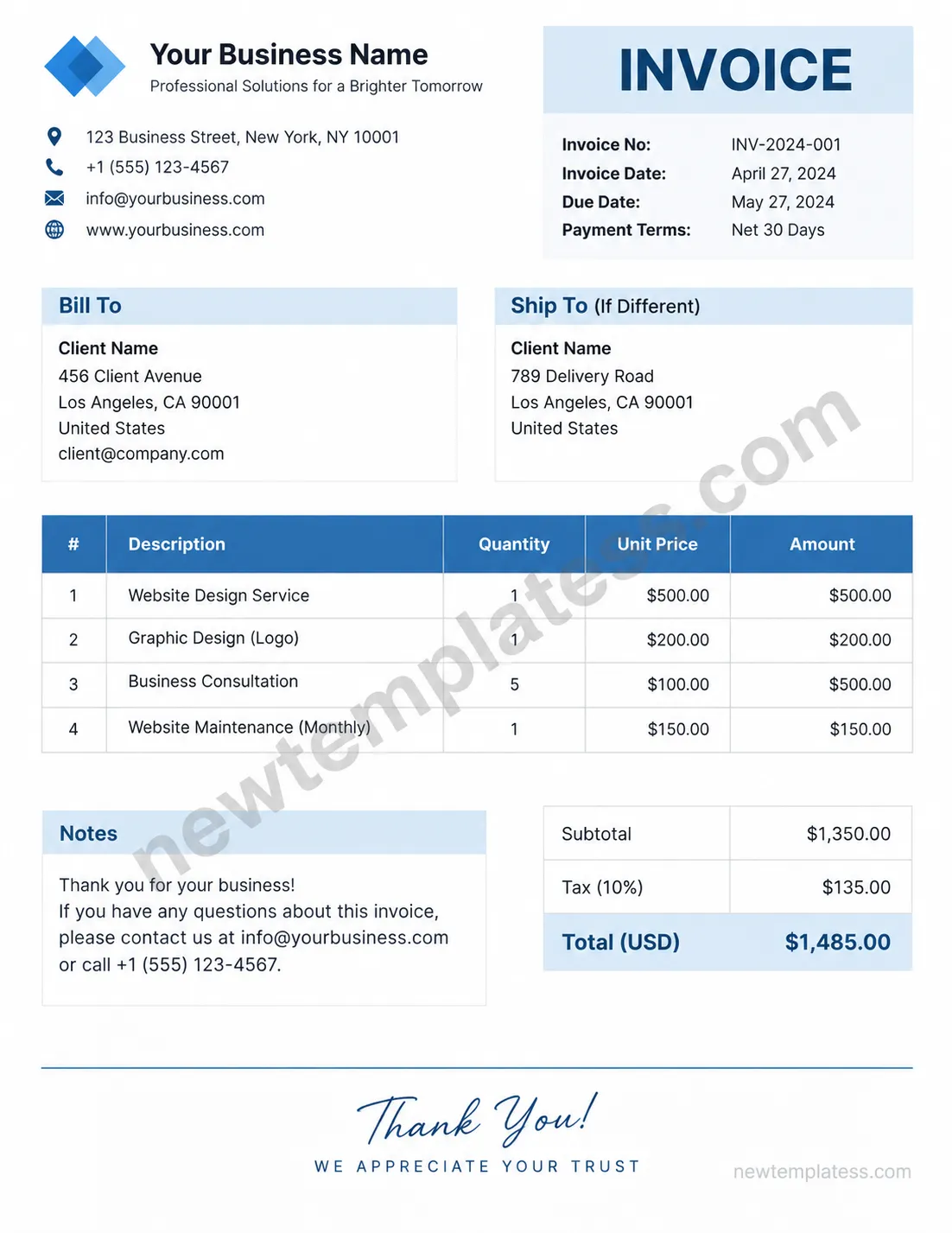
A good invoice should make the transaction easy to understand. Customers should be able to identify who issued the invoice, what they are being charged for, how much they owe, and when payment is expected.
1. Business Information
Start with your business information at the top of the invoice. Include your business name and, where appropriate, your logo. You can also add your business address, phone number, email address, and website.
This information helps customers recognize the sender and gives them a convenient way to contact you if they have questions about the invoice.
2. Invoice Number
Every invoice should have a unique invoice number. A simple numbering system makes it easier to organize financial records and locate a specific transaction later.
You could use sequential numbers such as INV-001, INV-002, and INV-003, or create a system that includes the year, such as INV-2026-001. Choose a format that works consistently for your business.
3. Invoice and Due Dates
Clearly display the invoice date and payment due date. If you use specific payment terms, such as Net 15 or Net 30, include those terms as well.
A clearly stated due date reduces confusion and tells the customer exactly when payment is expected.
4. Customer Information
The invoice should identify the customer or company being billed. Depending on your business, this may include the customer’s name, company name, billing address, email address, and phone number.
5. Products or Services
The central part of a business invoice is usually an itemized table. Each line should explain what the customer is paying for.
A useful invoice table may include:
- Item or service description
- Quantity
- Unit price
- Applicable tax
- Line total
Use specific descriptions instead of vague terms. For example, “Website maintenance – monthly service” gives a customer much more information than simply writing “Services.”
6. Subtotal, Tax, and Total
Make the financial summary easy to find. Display the subtotal, applicable discounts, taxes, additional fees, and final total separately.
The amount the customer needs to pay should be visually prominent. A clear total section helps prevent mistakes and makes the invoice easier to review.
7. Payment Instructions
Tell customers how they can pay. Depending on your business, you may accept bank transfers, credit cards, online payment services, checks, or other methods.
Include only the payment information customers actually need. If bank transfer is accepted, for example, provide the relevant account details and any payment reference they should include.
How to Create a Word Business Invoice
Creating an invoice in Word does not have to be complicated. A simple process can produce a professional result.
Step 1: Choose a Clean Layout
Start with a simple layout that gives each section enough space. Avoid overcrowding the page with unnecessary graphics or decorative elements. The primary purpose of an invoice is to communicate financial information clearly.
Step 2: Add Your Business Branding
Place your business name and logo near the top of the document. Use your normal business colors and fonts where appropriate, but make sure the text remains easy to read when printed.
Step 3: Add Invoice Details
Include the invoice number, invoice date, due date, and payment terms. Keep these details in a clearly labeled area so customers can find them quickly.
Step 4: Add Customer and Billing Details
Create a section for the customer’s information. If your business regularly bills different individuals or companies, a dedicated “Bill To” section makes the invoice easier to scan.
Step 5: Itemize the Charges
Use a table to list each product or service. Double-check quantities and prices before sending the invoice. If several services are included, separate them into individual lines rather than combining everything into one vague description.
Step 6: Add the Payment Summary
Calculate the subtotal, tax, discounts, fees, and final amount. Make sure the calculations are correct and that the final total matches the amount requested from the customer.
Step 7: Save and Review the Invoice
Save the original template separately from completed invoices. When creating a new invoice, use a copy of the template and assign it a unique file name, such as “INV-2026-001-ClientName.”
Before sending the document, check the customer’s details, invoice number, dates, descriptions, prices, tax calculations, and payment instructions.
Tips for Making Your Business Invoice More Professional
A professional invoice is not necessarily complicated. In most cases, clarity and consistency matter more than elaborate design.
Keep the Design Simple
Use clear headings, readable fonts, sufficient spacing, and simple table borders. A clean layout helps customers focus on the information that matters.
Use Consistent Invoice Numbers
Do not randomly change your numbering system from one invoice to another. A consistent sequence makes record keeping easier and can help you locate documents when reviewing your business finances.
Make the Total Easy to See
The customer should not have to search the page to determine the amount due. Use a separate summary section and emphasize the final total with appropriate typography.
State Payment Terms Clearly
If payment is due within a certain number of days, state the terms clearly. You can also include information about late payment policies if they apply to your business and are appropriate for your customer agreements.
Proofread Before Sending
Small mistakes can make an otherwise professional invoice look unreliable. Check names, addresses, dates, invoice numbers, quantities, prices, tax calculations, and payment details before sending.
Word Business Invoice vs. Other Invoice Formats
Different businesses use different tools for billing. A Word invoice is useful when flexibility and simple document editing are important.
Word: Ideal for businesses that want a customizable document that is easy to edit and print.
Excel: Useful when invoices require calculations, formulas, or spreadsheet-based record keeping.
PDF: Excellent for sending a finalized invoice because the layout is less likely to change between devices.
Accounting software: Helpful for businesses that need automated invoicing, payment tracking, recurring invoices, financial reports, and customer records.
For many small businesses, a practical workflow is to create and customize the invoice in Word, review it carefully, and then export the finished document as a PDF before sending it to the customer.
Common Mistakes to Avoid on a Business Invoice
Even a good invoice template can cause problems if important information is missing or inaccurate. Watch out for these common mistakes:
- Leaving out the invoice number.
- Using incorrect customer information.
- Failing to include a payment due date.
- Combining multiple services into an unclear description.
- Forgetting applicable taxes or fees.
- Using inconsistent invoice numbering.
- Sending an editable document when a finalized PDF would be more appropriate.
- Failing to check the final amount before sending.
- Providing incomplete or incorrect payment instructions.
Who Can Use a Word Business Invoice?
A Word invoice template can work for many types of businesses and independent professionals. Freelancers can use it to bill clients for completed projects, while consultants can itemize hourly services or project fees.
Small retail businesses, contractors, designers, marketing agencies, photographers, virtual assistants, repair businesses, and professional service providers can also adapt the format to their needs.
The key is to customize the template so that the information reflects the actual products or services being provided.
How to Organize Your Invoice Files
Good invoice management is just as important as creating a professional document. Create a dedicated folder for invoices and use a predictable file naming system.
For example, you could organize files by year and customer:
- Invoices / 2026 / Client A
- Invoices / 2026 / Client B
- Invoices / 2026 / Client C
Within each folder, use invoice numbers in file names. This makes it easier to find documents when following up on payments or preparing financial records.
Final Thoughts on Word Business Invoices
A well-designed word business invoice gives businesses a straightforward way to request payment while presenting important transaction details in a professional format. The best invoice is not necessarily the most decorative one. It is the one that clearly communicates who is billing the customer, what was provided, how much is due, and when payment should be made.
Using a reusable Word business invoice template can save time, improve consistency, and make your billing process easier to manage. Start with a clean layout, add your business branding, itemize your products or services, provide clear payment instructions, and carefully review every invoice before sending it.
With a consistent template and organized filing system, creating professional invoices can become a quick and reliable part of your regular business workflow.
